Discover the ultimate guide on how to play games remotely Steam, transforming your gaming experience in 2026. This comprehensive resource is designed for the modern US gamer who balances a busy life with their passion for interactive entertainment. Learn how to leverage Steam Remote Play, Steam Link, and Remote Play Together to stream your favorite PC titles to any device, whether it's your smartphone, tablet, laptop, or Steam Deck. We dive into essential setup steps, performance optimization tricks to combat lag, and solutions for common issues, ensuring smooth, high-quality gameplay from the couch, on your commute, or even across the globe. This article provides navigational and informational insights into hardware requirements, network best practices, and game recommendations that thrive in a remote play environment. Embrace the freedom to unwind and socialize with friends through gaming, no matter where you are, making every moment count in your busy schedule. We cover everything from initial configuration to advanced tweaks, empowering you to maximize your gaming value and stay current with flexible play options without needing constant hardware upgrades.
What exactly is Steam Remote Play and how does it help busy gamers?
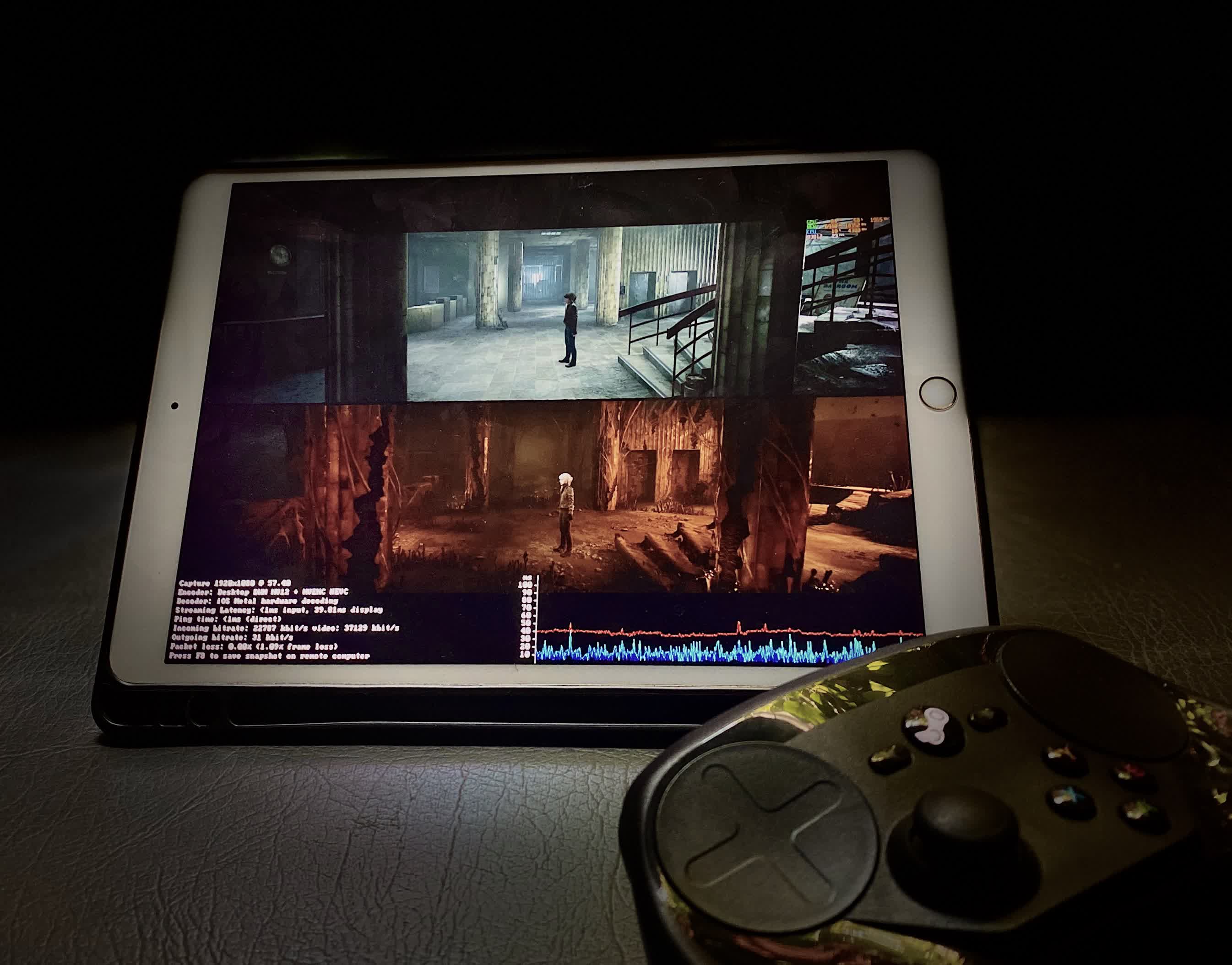
Steam Remote Play allows you to stream games from your powerful gaming PC to another device, like a laptop, tablet, phone, or even another PC, anywhere in your home network or across the internet. This means if you're a gamer balancing work and family, you can start a session on your desktop, then seamlessly switch to your tablet on the couch, or even play a quick session on your phone during a lunch break without needing your main rig right there. It transforms how and where you game, offering incredible flexibility.
How do I set up Steam Remote Play to stream my PC games to another device?
Setting up Steam Remote Play is straightforward. First, ensure Steam is running on your host PC with the game installed and open. On your client device (laptop, phone, etc.), install Steam Link (for mobile/TV) or the Steam client (for PC/Mac). Log into the same Steam account. Your host PC should automatically appear. Select it, pair the devices with a code, and you're ready to stream. Ensure both devices have a stable internet connection, preferably wired for the host PC.
Can I play multiplayer games with friends using Steam Remote Play Together?
Absolutely! Steam Remote Play Together allows you to invite friends to play your local co-op, split-screen, or shared-screen multiplayer games over the internet, even if they don't own the game themselves. Your PC acts as the host, streaming the video and audio to your friends, while their controller or keyboard inputs are sent back. It's fantastic for social gaming, letting you share your library and enjoy couch co-op titles from miles away, connecting with up to four players easily, or even more under ideal network conditions.
What are the common performance issues with Steam Remote Play and how can I fix them?
Common performance issues include lag, stuttering, and low image quality. The primary culprits are usually network speed and latency. To fix these, ensure your host PC is connected via Ethernet. On both devices, go into Steam Link or Steam settings and adjust the streaming quality. Try setting it to 'Balanced' or even 'Fast' to prioritize performance over visuals. Lower the resolution, cap the framerate, or disable hardware encoding/decoding if problems persist. A strong Wi-Fi signal on the client device (5GHz preferred) is also crucial for a smooth experience.
Is Steam Remote Play suitable for fast-paced competitive games?
While Steam Remote Play offers impressive low-latency streaming, it's generally not recommended for highly competitive, fast-paced esports titles where every millisecond counts. The inherent latency, even minimal, introduced by streaming can put you at a disadvantage. However, for casual competitive play, single-player action games, or slower-paced multiplayer titles, it works remarkably well. For the most critical gaming moments, direct play on your host PC remains the gold standard, but for unwinding with friends, Remote Play is excellent.
How does my internet connection impact Steam Remote Play quality?
Your internet connection is paramount for good Steam Remote Play quality, especially when streaming outside your local network. Both upload speed on the host PC and download speed on the client device are critical. For smooth 1080p 60fps streaming, Steam recommends at least 30 Mbps for both. A stable, low-latency connection is even more important than raw speed. Wireless interference or network congestion can severely degrade performance, making a wired connection for the host PC and a strong 5GHz Wi-Fi for the client ideal.
Can I use any game controller or keyboard/mouse with Steam Remote Play?
Yes, Steam Remote Play supports a wide range of input devices. If you're using Steam Link on a mobile device or a smart TV, it will typically support popular Bluetooth controllers like Xbox, PlayStation, and many MFi controllers. When streaming to another PC or laptop, all your connected USB or Bluetooth peripherals, including keyboards, mice, and any game controllers, should work seamlessly. This allows you to recreate your full gaming setup experience from virtually any remote location, making for a truly flexible experience.
In 2026, the average US gamer, often around 36 years old, faces a unique challenge: how to balance a demanding job, family commitments, and a vibrant social life with their passion for gaming. With 87% of gamers regularly dedicating 10+ hours a week to their virtual worlds, finding flexible ways to play isn't just a convenience—it's essential. You love the thrill of high-performance PC gaming, the relaxation it offers, and the joy of social play, but your gaming rig isn't always where you are, or your friends aren't always on your couch. This is where the magic of Steam Remote Play truly shines, offering a lifeline for busy adults who want to stay connected to their favorite titles and friends without compromise. It’s about making every precious gaming moment count, whether you're unwinding on the living room sofa, grabbing a quick session on your mobile during a lunch break, or connecting with pals across state lines. Forget setup headaches and performance woes; we’re here to give you the ultimate guide on how play games remotely Steam, turning any device into your personal gaming portal.
We understand the pain points: wanting to play that new AAA title but being stuck on a work trip, or yearning for a local co-op session with friends who live miles away. Gamers are looking for practical solutions that enhance their experience without breaking the bank on new hardware or demanding endless troubleshooting. This guide cuts through the hype, offering clear, actionable advice to set up, optimize, and troubleshoot Steam Remote Play, Steam Link, and Steam Remote Play Together. We'll show you how to maintain performance, make smart choices about internet connections, and discover games perfectly suited for remote play. Get ready to transform how you game, ensuring that your passion for digital adventures remains a vibrant, accessible part of your life, regardless of location or time constraints.
What is Steam Remote Play and Why Should Busy Gamers Care?
Steam Remote Play is a powerful feature built into Steam that allows you to stream games from your primary gaming PC to another device, whether that's another computer, a tablet, a smartphone, or even a smart TV. Essentially, your powerful gaming rig does all the heavy lifting – rendering the game, processing graphics – and then streams the video and audio output to your chosen client device. Your inputs (controller, keyboard, mouse) are sent back to the host PC in real-time. For the ~60% of US gamers who balance their hobby with jobs and families, this means unparalleled flexibility. Imagine starting a single-player epic on your desktop, then seamlessly continuing on your Steam Deck or tablet from the comfort of your couch, or inviting friends to a local co-op game without them needing to own it or even be in the same room.
This feature directly addresses the pain point of being tethered to a single location for high-fidelity gaming. It empowers you to enjoy your extensive Steam library from anywhere with a stable internet connection, fitting gaming into those precious pockets of free time. It's about relaxation, fun, and social connection on your terms. This month, with mobile gaming still dominating and social experiences trending, Steam Remote Play is more relevant than ever for gamers seeking convenience without compromising on their PC game quality.
How Do I Set Up Steam Remote Play for Solo Gaming?
Setting up Steam Remote Play is surprisingly straightforward, designed to get you playing quickly. Here’s a step-by-step guide to get your solo streaming sessions rolling:
- Prepare Your Host PC: Ensure Steam is running on your primary gaming PC, the one with all your games installed. Make sure the game you want to stream is installed and updated. For the best performance, connect your host PC to your router via an Ethernet cable. This minimizes latency and ensures a stable stream.
- Install Steam Link (Client Device): On the device you want to stream to (your laptop, tablet, phone, or another PC), download and install the Steam Link app. It's available on iOS, Android, macOS, Linux, and Windows. If you're streaming to another PC, simply installing the Steam client and logging in will suffice.
- Log In to Steam: On your client device, open Steam Link or the Steam client and log in using the exact same Steam account as your host PC. This is crucial for device recognition.
- Discover Your Host PC: Steam Link or the client will automatically scan your network for Steam-enabled PCs. Once your host PC appears, select it.
- Pair Devices: You'll see a four-digit PIN code on your client device. Enter this code into a pop-up window that appears on your host PC to pair the devices securely.
- Start Streaming: After successful pairing, you'll see your Steam library interface on your client device. Select a game and click 'Stream' to begin playing.
This setup allows you to leverage your powerful gaming PC from any room in your house or even from a different location entirely, as long as both ends have a robust internet connection.
Can I Play Steam Games on My Phone or Tablet Remotely?
Yes, absolutely! Playing Steam games on your phone or tablet is one of the most popular and convenient uses of Steam Remote Play, perfectly suiting the modern gamer's need for flexibility. With mobile dominance still a major trend in gaming, this capability bridges the gap between high-end PC titles and on-the-go play. All you need is the Steam Link app, available for free on both iOS and Android devices.
Once installed, the setup process is identical to what's described above: open Steam on your host PC, open Steam Link on your mobile device, pair them, and you're ready to stream. The Steam Link app is optimized for touch controls, offering customizable on-screen buttons, but it truly shines when paired with a Bluetooth controller (like an Xbox, PlayStation, or MFi controller) for a more authentic gaming experience. This setup lets you enjoy your favorite PC games from anywhere you have Wi-Fi or a strong cellular data connection, turning your phone or tablet into a surprisingly capable portable gaming machine.
What's Steam Remote Play Together and How Does It Work for Multiplayer?
Steam Remote Play Together is a revolutionary feature that brings local multiplayer experiences to the online world. It allows you to invite friends to play your local co-op, split-screen, or shared-screen multiplayer games over the internet, even if they don't own the game themselves! Your PC acts as the host, streaming the game's video and audio to your friends, while their controller, keyboard, or mouse inputs are sent back to your machine. It's like having your friends sitting right next to you on the couch, but without the need for extra controllers or even being in the same city.
To use it, simply start a supported local multiplayer game on your host PC. Open your Steam overlay (Shift+Tab), right-click on a friend in your Friends List, and select 'Remote Play Together'. They'll receive an invite, and once accepted, they'll be streaming the game from your PC. Up to four players can typically join this way, though under ideal network conditions, more might be possible. This feature is a game-changer for social gamers, fostering connection and skill-building among friends who might have limited time to meet up physically. It's a fantastic way to enjoy popular cozy games or competitive local titles with your gaming crew, no matter the distance.
What Hardware and Internet Speed Do I Need for Smooth Remote Play?
While the beauty of Steam Remote Play is that it leverages your existing powerful PC, certain hardware and internet considerations are key to a smooth experience:
- Host PC:
- Processor: A modern multi-core CPU (Intel i5/Ryzen 5 or better) is recommended for encoding the video stream.
- Graphics Card: A dedicated GPU (NVIDIA GTX 900 series or AMD R9 300 series and newer) is essential for efficient hardware encoding.
- RAM: 8GB or more is standard for modern gaming.
- Connection: A wired Ethernet connection to your router is highly, highly recommended. This is the single biggest factor for stable performance.
- Client Device:
- Processor: A device capable of H.264 video decoding (most modern phones, tablets, and PCs fit this).
- Connection: A strong Wi-Fi connection, ideally 5GHz, is crucial. If using another PC, a wired connection is best.
- Input: A compatible controller (Xbox, PlayStation, MFi) or keyboard/mouse.
- Internet Speed (Crucial for out-of-home streaming):
- Minimum: For basic 720p 30fps streaming, around 10-15 Mbps upload (host) and download (client) is often sufficient.
- Recommended: For smooth 1080p 60fps streaming, Steam recommends at least 30 Mbps upload speed for your host PC and 30 Mbps download speed for your client device.
- Latency: Low latency (ping) is often more important than raw speed. A stable connection with minimal packet loss ensures responsiveness.
Remember, internet connection quality can fluctuate; a wired connection on the host PC and a strong 5GHz Wi-Fi signal on the client (or wired if possible) will mitigate many potential issues.
How Can I Optimize Performance and Reduce Lag When Playing Remotely?
Lag and visual artifacts can quickly ruin a remote play session. Optimizing your setup is key to a frustration-free experience, allowing you to enjoy your games without interruption. Here are proven strategies:
- Prioritize Wired Connections: Always connect your host PC to your router with an Ethernet cable. For the client device, if it's another PC or a Steam Deck docked, a wired connection is also preferable. This eliminates Wi-Fi interference and boosts stability.
- Adjust Streaming Settings in Steam:
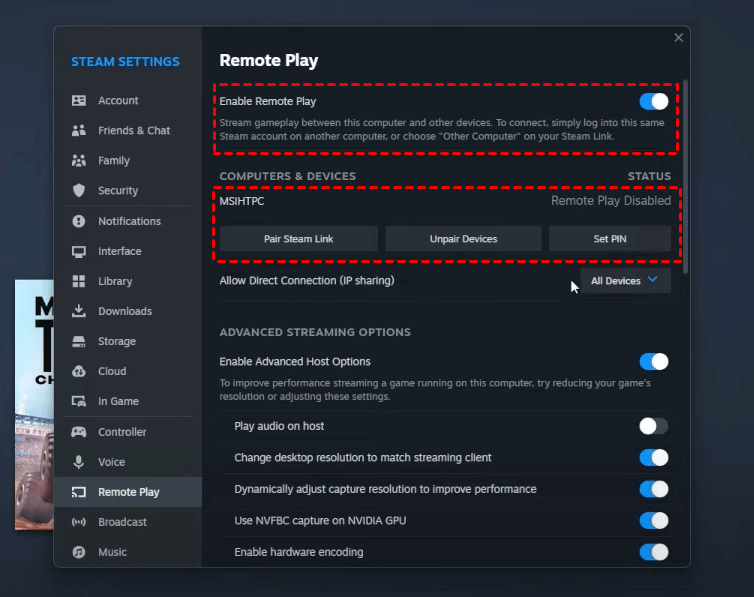
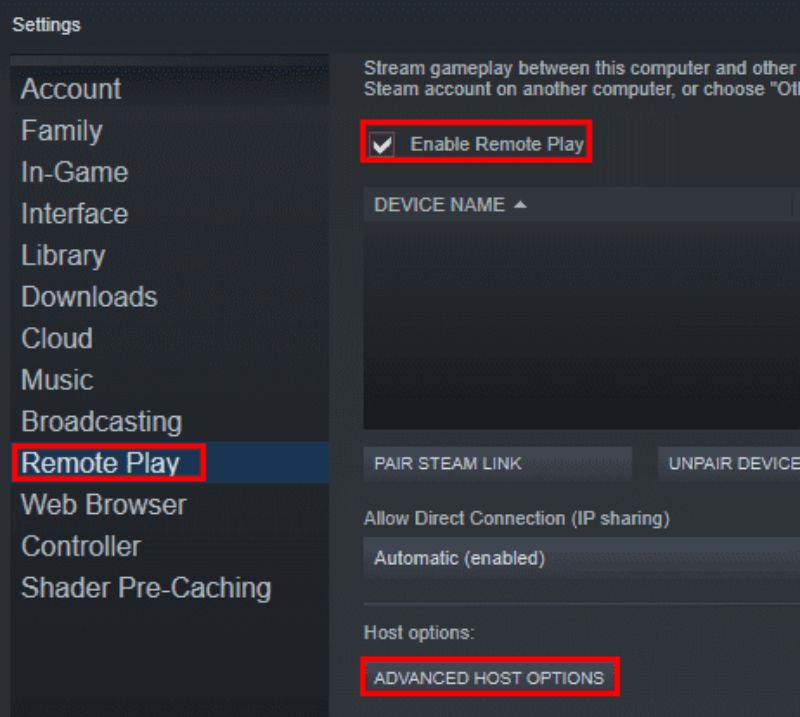
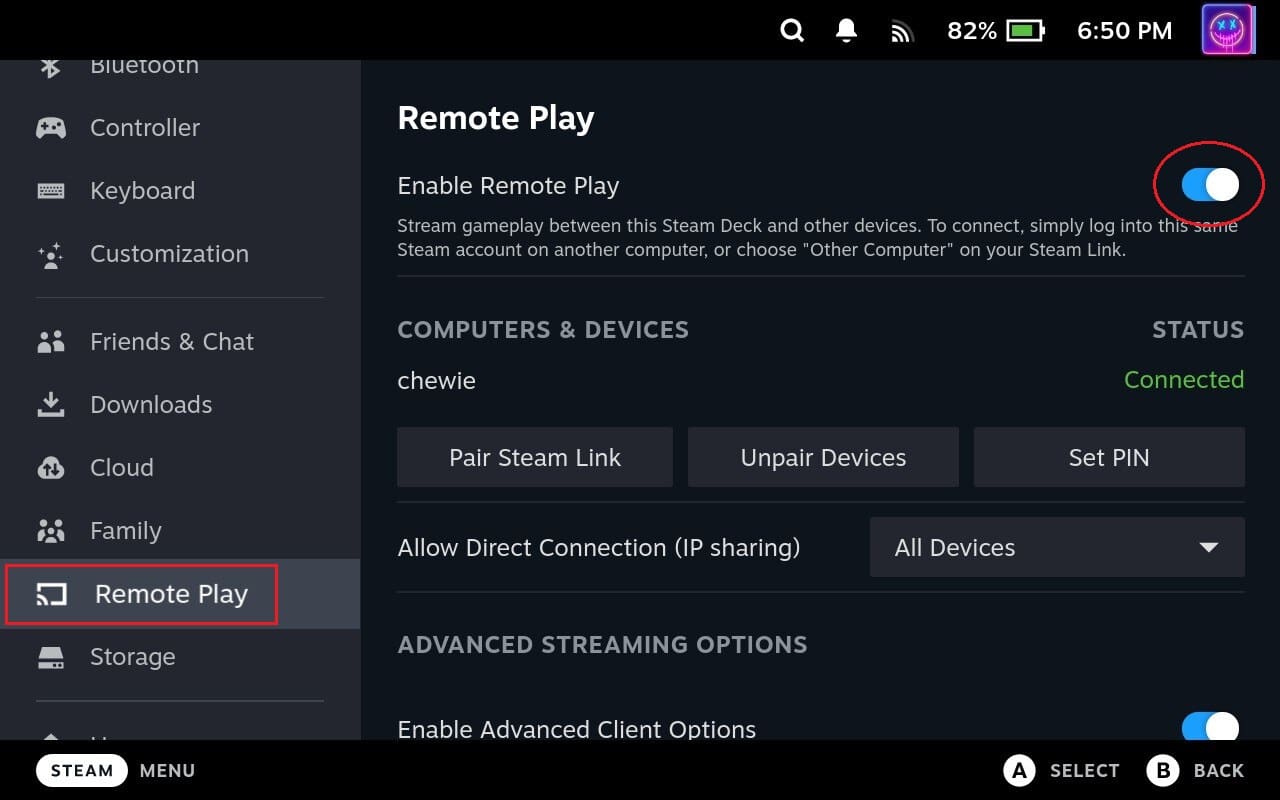
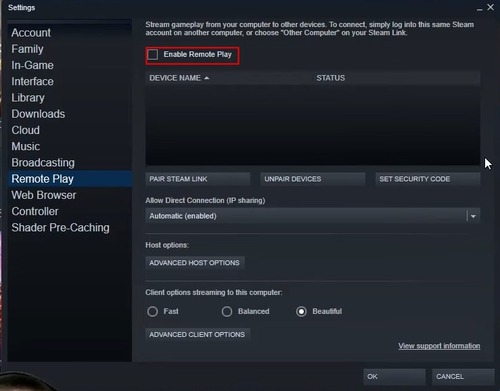
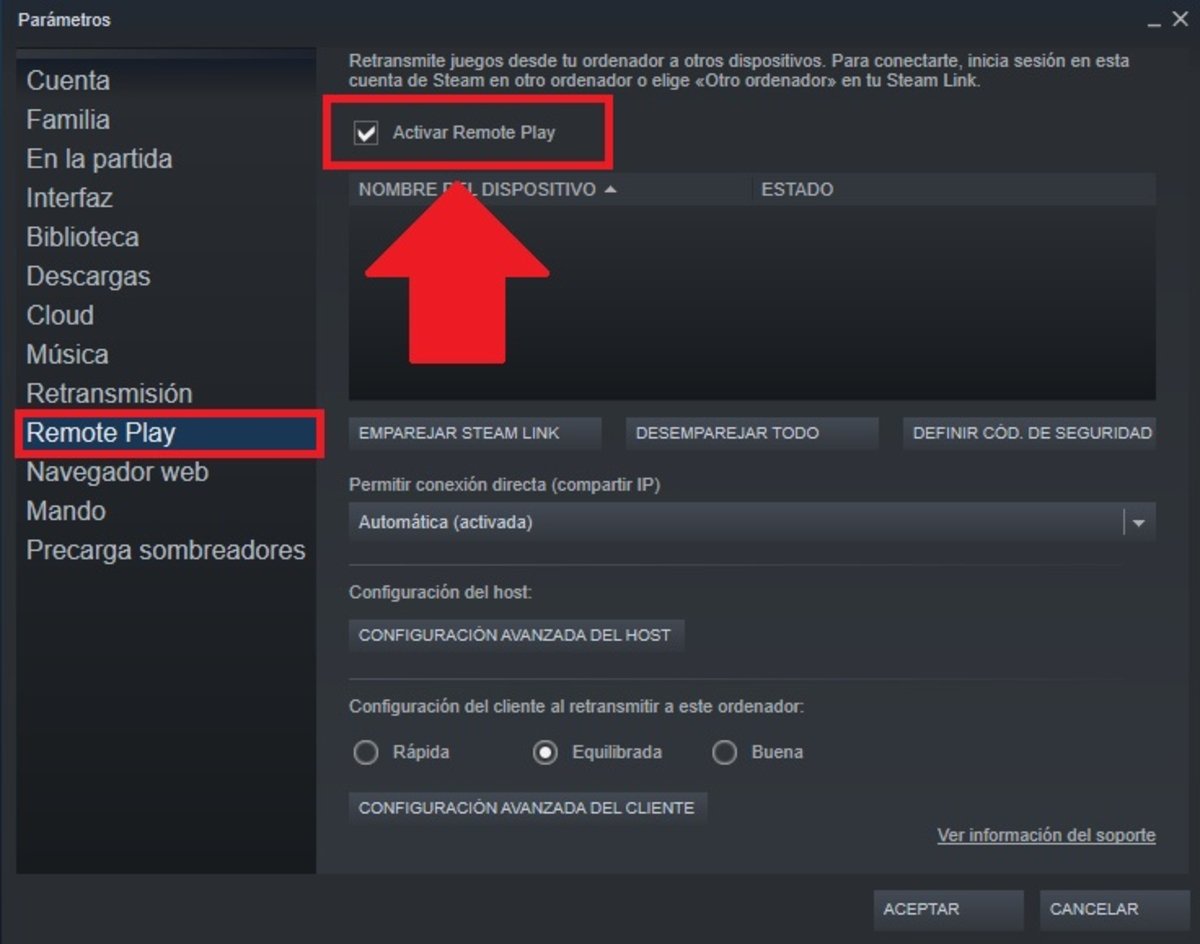
- Go to Steam > Settings > Remote Play on your host PC.
- Set 'Client Performance' to 'Fast' or 'Balanced'. 'Fast' prioritizes framerate and responsiveness over image quality.
- Experiment with 'Limit resolution' if you're experiencing lag. Lowering it from 1080p to 720p can drastically improve performance.
- Enable 'Hardware encoding' if your host PC's GPU supports it (most modern GPUs do). This offloads encoding from your CPU, improving efficiency. Do the same for 'Hardware decoding' on your client device if available.
- Manage Your Network:
- Minimize other network usage during streaming. Avoid large downloads, video streaming, or heavy online activity on other devices on your network.
- If possible, use a 5GHz Wi-Fi band for your client device, as it generally offers faster speeds and less interference than 2.4GHz.
- Ensure your router's firmware is up to date and that it's placed in a central location.
- In-Game Settings:
- Lower graphical settings within the game on your host PC. Reducing resolution, shadow quality, or anti-aliasing frees up resources for both rendering and encoding.
- Cap the in-game framerate to match your client device's refresh rate (e.g., 60fps) or slightly below, rather than letting it run uncapped.
- Update Drivers: Ensure your graphics drivers (NVIDIA, AMD, Intel) on your host PC are always up to date. Latest drivers often include performance improvements for encoding and streaming.
By implementing these tips, you can significantly reduce lag, improve visual quality, and create a much more enjoyable remote gaming experience.
Are There Any Common Issues with Steam Remote Play and How Do I Fix Them?
While Steam Remote Play is robust, users sometimes encounter hiccups. Here are some common problems and their solutions:
- Host PC Not Appearing on Client Device:
- Ensure both devices are logged into the same Steam account.
- Check that Steam is running on your host PC.
- Verify both devices are on the same local network (for in-home streaming).
- Temporarily disable firewalls or antivirus software on both devices to see if they're blocking the connection. If this fixes it, add Steam to their exceptions.
- Restart both your router and the Steam clients on both devices.
- Lag, Stuttering, or Low Quality:
- This is almost always network-related. Revisit the optimization tips above, focusing on wired connections and adjusting streaming settings to 'Fast'.
- Check your internet speed (upload/download) and ping using an online speed test. If it's consistently low or high, contact your ISP.
- Ensure no other applications are hogging bandwidth on your host PC or network.
- Controller Not Working/Inputs Not Registering:
- Ensure your controller is properly paired and recognized by your client device.
- In Steam on your host PC, go to Settings > Controller > General Controller Settings and ensure the correct controller type is enabled.
- Sometimes, restarting the game or Steam client can resolve input issues.
- For specific games, you might need to adjust their in-game controller settings.
- Black Screen or Disconnects:
- Update your graphics drivers on the host PC.
- Disable hardware encoding/decoding in Steam's Remote Play settings temporarily to see if it's a driver conflict.
- Ensure your host PC isn't going to sleep or locking its screen. Adjust power settings.
- Check for conflicting software that might be taking exclusive control of the display (e.g., other streaming software).
Most issues can be resolved by carefully checking your network, Steam settings, and drivers. The Steam community forums are also an excellent resource for unique problems.
Can I Use a Controller or Specific Peripherals with Remote Play?
Yes, one of the great advantages of Steam Remote Play is its broad compatibility with input devices, allowing you to maintain your preferred gaming setup remotely. You are generally not limited to just a keyboard and mouse.
- Game Controllers:
- Most popular controllers like Xbox Wireless Controllers, PlayStation DualShock/DualSense controllers, and many MFi-certified controllers (for iOS) are fully supported.
- When using Steam Link on a mobile device or a smart TV, you typically connect these controllers via Bluetooth to the client device.
- When streaming to another PC or Steam Deck, any controller connected to that client device (via USB or Bluetooth) should be recognized by the host PC through Steam Remote Play.
- Keyboard and Mouse:
- Standard keyboard and mouse inputs work seamlessly when streaming to another PC or laptop. Your client device's peripherals essentially act as if they were directly connected to your host PC.
- For mobile devices, touch controls are an option, but for games that require precise aiming or complex inputs, a physical mouse and keyboard connected via Bluetooth or USB-C hub can be used with some devices.
- Other Peripherals:
- While general-purpose controllers and KBM are well-supported, highly specialized peripherals like racing wheels, flight sticks, or VR headsets may have limited or no functionality with Steam Remote Play due to their unique drivers and latency requirements.
The system is designed to provide a flexible and immersive experience, letting you enjoy your games with the controls you're most comfortable with, wherever you choose to play.
How Does the Steam Deck Enhance Remote Gaming Possibilities?
The Steam Deck, Valve's powerful handheld gaming PC, significantly enhances Steam Remote Play possibilities, acting as an exceptional client device. It’s like the ultimate portable Steam Link, but with its own ability to run games natively, giving you the best of both worlds. For busy gamers, the Steam Deck perfectly fits into a lifestyle that demands flexibility and high performance on the go.
Here's how it elevates remote gaming:
- Seamless Integration: Being a Valve-made device, the Steam Deck integrates flawlessly with Steam Remote Play. You can easily switch between playing a game natively on the Deck and streaming it from your more powerful desktop PC, leveraging your desktop's power for graphically intensive titles while enjoying the Deck's portability.
- Ergonomic Controls: The Steam Deck's built-in, console-grade controls (thumbsticks, trackpads, triggers, grip buttons) provide an excellent and familiar input method for streaming. This eliminates the need to carry an external controller, making it a truly grab-and-go remote play solution.
- Optimized Software: The Steam Deck's SteamOS is highly optimized for streaming, often providing a smoother and more stable experience compared to a generic smartphone or tablet.
- Versatility: Use the Steam Deck to play demanding titles from your PC while away from your desk, save the Deck's battery for lighter indie games, or continue a desktop session while lounging on the couch. It perfectly embodies the
Steam Remote Play setup; play PC games on phone; Remote Play Together; optimize streaming performance; Steam Link guide; gaming flexibility; play anywhere Steam; budget gaming solutions; social gaming remotely; troubleshoot remote play.
35#1 Gallery how play games remotely steam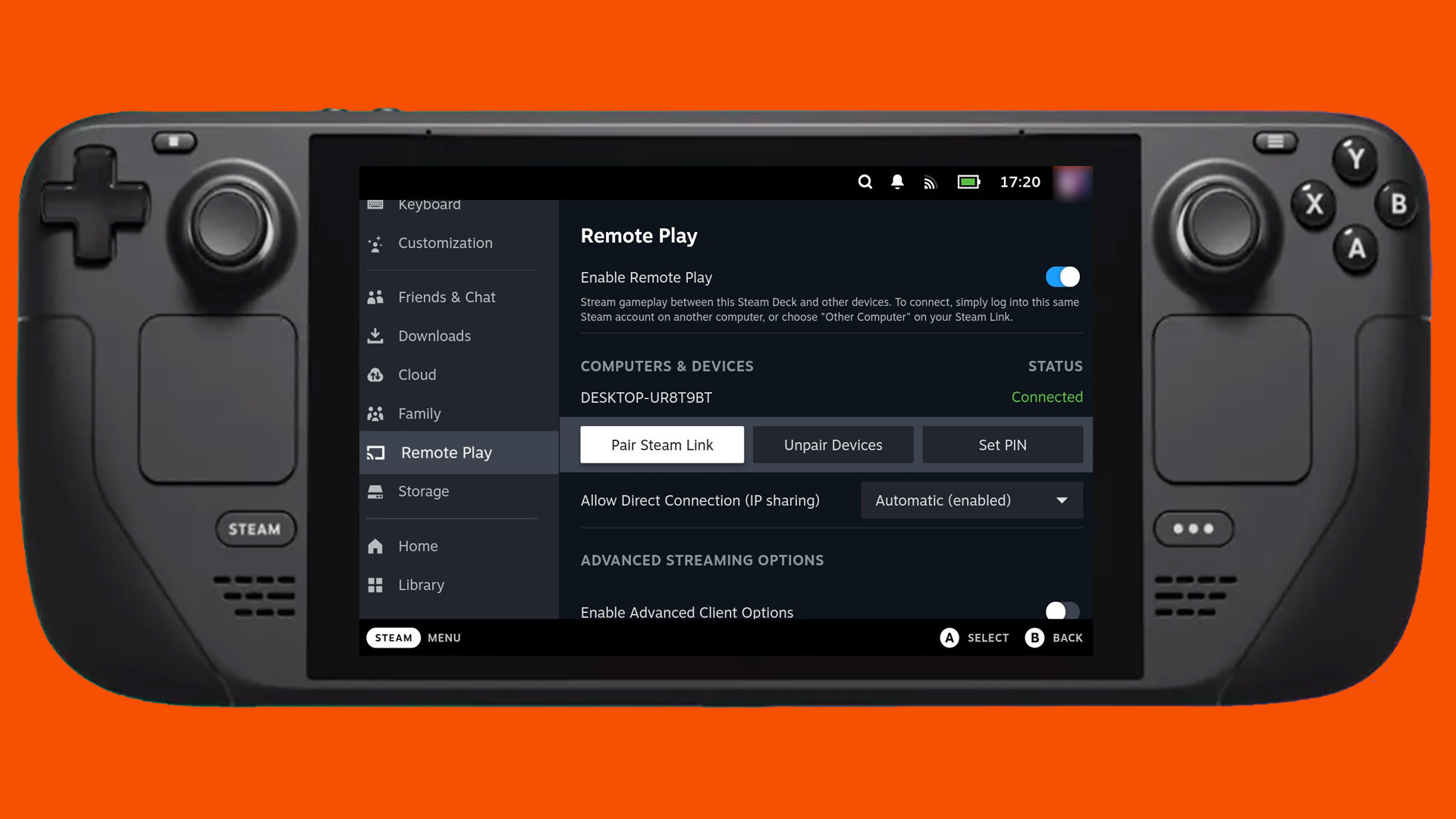
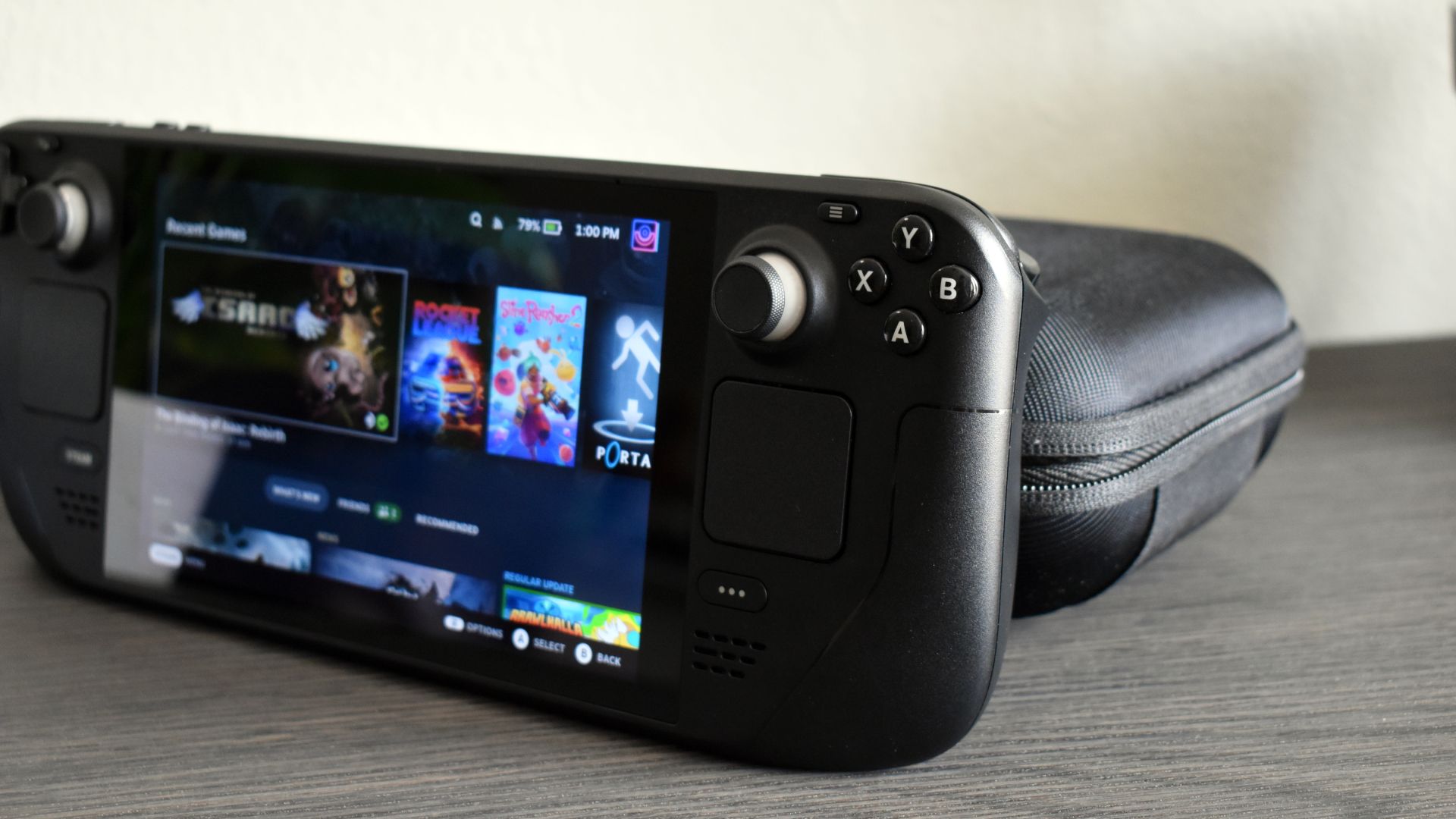
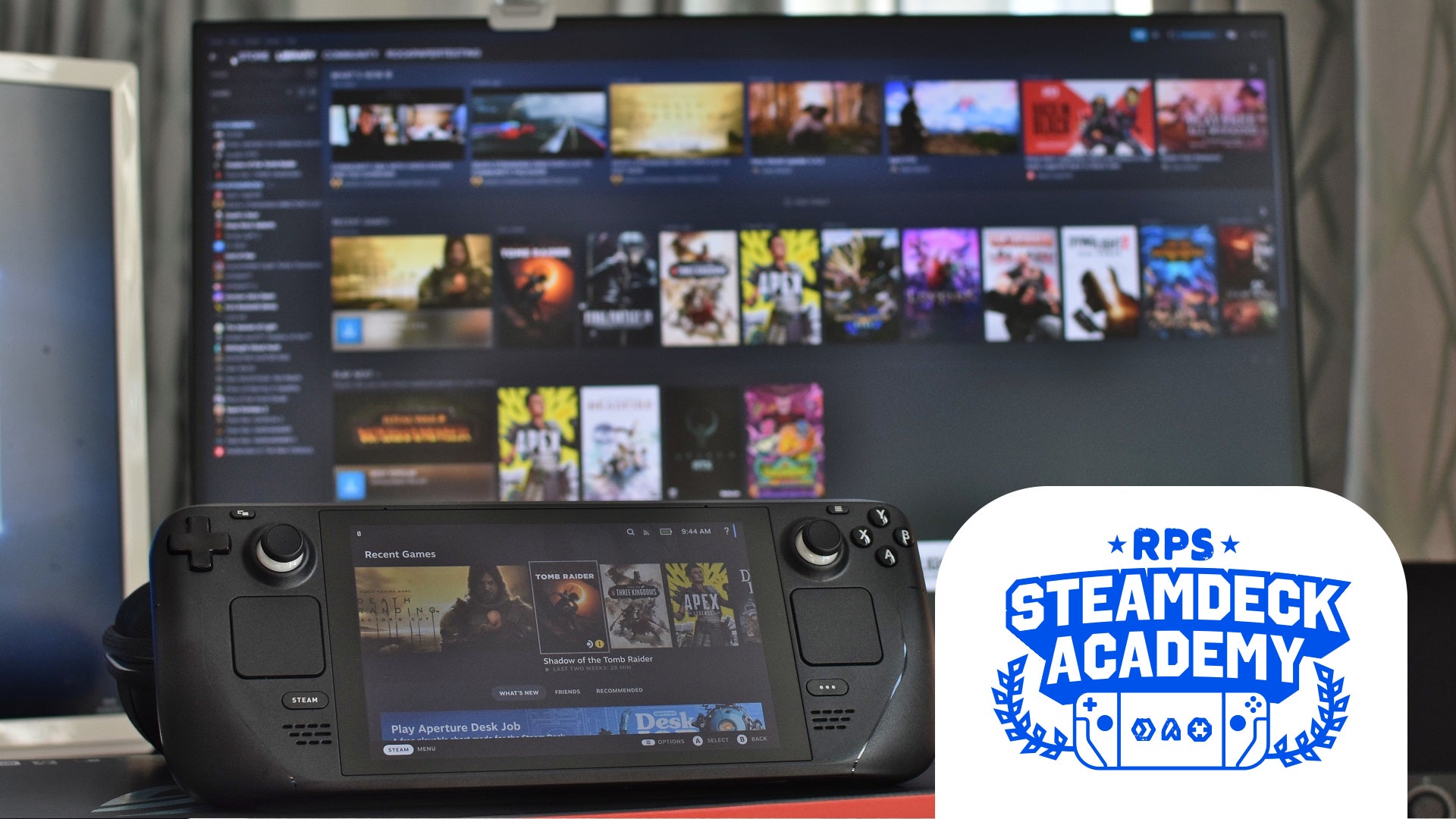
Steam Remote Play Steam SDXWV Steam Deck How To Enable Remote Play Featured . How To Stream Non Steam Games With Steam Remote Play 52674938391 E3b0848331 O . Steam Remote Play Rock Paper Shotgun How To Use Steam Remote Play On The Steam Deck Academy . Steam Community Guide How To Play Online With Friends Remote. Steam Deck Users Can Play Xbox Games Remotely With This Free App L Intro 1761093372
#2 Gallery how play games remotely steam

Steam Remote Play Windows 10 Installer Steam Remote Play ZCGK Steam Setting Up Remote Play On Steam Deck . Best Steam Remote Play Together Games YouTube . Steam Reviews Letting You Attach Your PC Specs Is Another Steam Machine Steam Machine Steam Controller And Steam Frame Preview . Tutorial How To Play Steam Games Remotely Enable Remote Play . The Most Played Games On Steam For 2026 So Far Cheat Code Central Most Played Games Steam 2026 2048x1167
#3 Gallery how play games remotely steam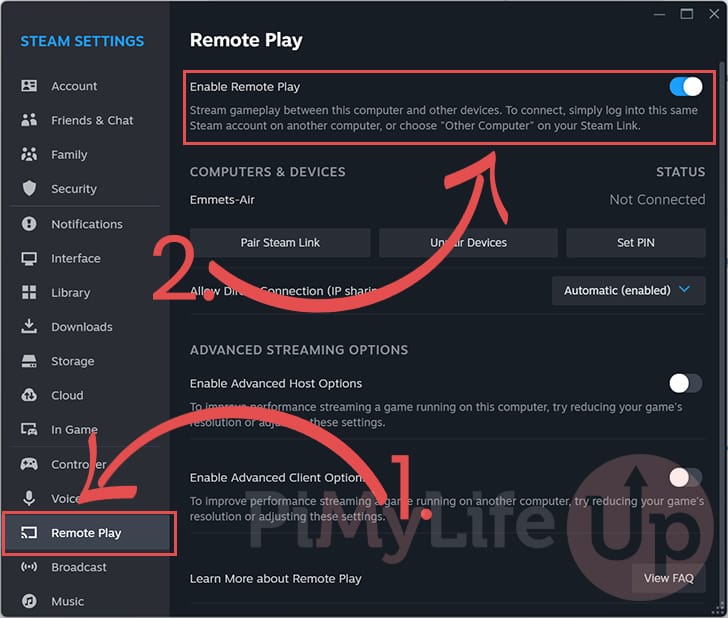
Steam Remote Play Fire Tv Steam Deck Remote Play 02 Enable Remote Play . Step By Step Tutorial How To Play Steam Games On Phone Enable Remote Play Steam . How To Steam Remote Play Any Game At Charlotte Stretton Blog Steam Deck How To Remote Play From Your Computer 7 . Steam Link Steam Remote Play Download Latest 2026 FileCR Image. In Home Streaming Faceoff Steam Remote Play Vs Moonlight TechSpot 2021 02 09 Image 2
#4 Gallery how play games remotely steam

Ps Remote Play Steam Deck Installer Remote Play Sur Steam Deck SCLH . Stream Your Favorite Games Anywhere The Ultimate Steam Remote Play Disable Remote Play Steam . How To Use Steam Remote Play Together With Any Game 2025 Full Guide . List Of Remote Play Together Steam Games To Play In 2026 1920xt1080 S1000 . Steam April 2026 Client Update Adds Remote Downloads Management Steam Client April 2026 1024x576
#5 Gallery how play games remotely steam
2 Easy Ways To Play Steam Games Remotely Anytime Anywhere . Play Steam Games Without Installing Them The Complete 2026 Guide Image. How To Use Steam Remote Play On Pc At Warren Brooks Blog . 2 Easy Ways To Play Steam Games Remotely Anytime Anywhere . Remote Play On Steam How To Use
#6 Gallery how play games remotely steam


Can You Play Steam Games On Xbox Consoles GAMES IN 2026 . Fixing Steam Remote Play Say Goodbye To Freezing Issues LevelUpTalk Fixing Steam Remote Play Settings 02 08 2026 3d2406ce 7b9b 447f 99cf. How To Play PS5 Games Remotely On Steam Deck Msi Gpus 1 . 2 Easy Ways To Play Steam Games Remotely Anytime Anywhere . The Ultimate Steam Remote Play Guide How To Set Up And What To Do Og Image
#7 Gallery how play games remotely steam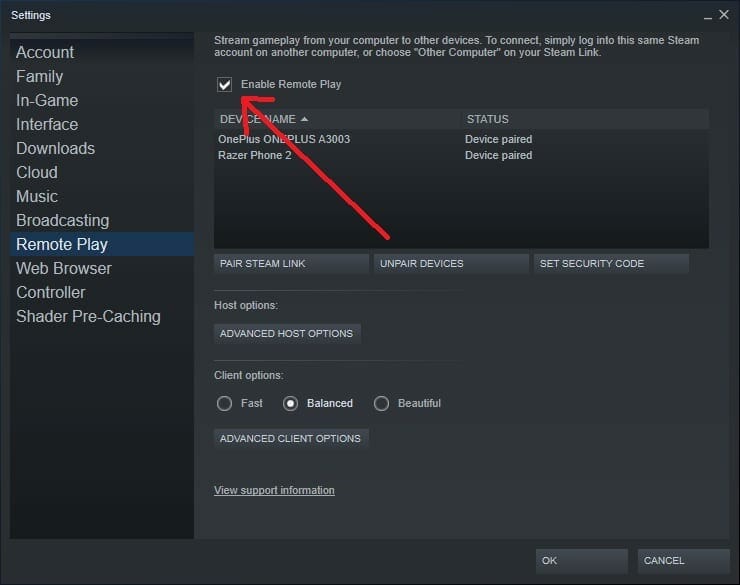


How To Use Steam Remote Play To Play PC Games On Android IOS Smart TV Enable Remote Play . How To Steam Remote Play Any Game At Charlotte Stretton Blog Activar Remote Play Steam . How To Play PS5 Games Remotely On Your Steam Deck Lifehacker Hero . How To Remote Play On Steam 2026 Step By Step Guide YouTube . How Does Steam Remote Play Work Beginner S Guide YouTube

