Ever wondered how top Roblox experiences achieve such immersive soundscapes? This comprehensive guide dives deep into how to make audio for Roblox, transforming your game from good to unforgettable. For US gamers balancing work, family, and play, optimizing every moment in-game is key. Custom audio is a game-changer, enhancing player engagement, adding realism, and creating unique atmospheres that resonate with your audience. We'll cover everything from the basic upload process to navigating copyright, optimizing for performance, and common troubleshooting tips. Whether you're building a relaxing social hangout, a competitive challenge, or an intricate adventure, understanding Roblox audio is essential. This resource provides practical, actionable advice designed to save you time and elevate your creations, ensuring your game stands out in the bustling world of user-generated content, especially given the current trends towards highly social and interactive virtual spaces. Learn to master sound and give your players an auditory experience they'll keep coming back to.
How can I get free audio for my Roblox game?
You can find free audio for your Roblox game by utilizing royalty-free music and sound effect libraries. Websites like Freesound.org, OpenGameArt.org, and Incompetech by Kevin MacLeod offer a vast collection of sounds that are free to use, often under Creative Commons licenses. Always check the specific license requirements for attribution. Additionally, some Roblox creators make their approved audio assets publicly available for others to use, which you can discover within the Creator Hub.
What are the common reasons Roblox audio gets rejected?
Roblox audio frequently gets rejected for several common reasons. The most prominent is copyright infringement; using music or sound effects you don't own or have explicit permission for will lead to rejection. Other reasons include exceeding the file size (20MB) or length (7 minutes) limits, using unsupported file formats (only MP3 and OGG are accepted), containing inappropriate or explicit content, or having poor audio quality that makes it difficult to moderate. Always ensure your files adhere to all technical and content guidelines.
Can I use my own recorded voice or music in Roblox?
Yes, absolutely! You can use your own recorded voice or original music compositions in Roblox, provided you created them and therefore own the rights. This is a fantastic way to personalize your game and give it a unique feel. Just ensure your recordings meet the technical specifications: MP3 or OGG format, under 20MB, and less than 7 minutes long. Uploading original content bypasses all copyright concerns and allows your creative vision to shine through, offering a truly authentic experience for your players.
How do I fix low-quality audio in my Roblox game?
To fix low-quality audio in your Roblox game, start by checking the source file. Ensure the original audio is high quality and not overly compressed before uploading. When converting to MP3 or OGG, aim for a balanced bitrate (e.g., 128 kbps for music). Within Roblox Studio, verify the 'Volume' property of your Sound instance; too low a volume can make good audio sound poor. Also, consider any 3D audio settings like 'RollOffMode' and 'RollOffMaxDistance' if the sound is positional, as incorrect settings can make sound fade too quickly or sound distant. Finally, test on various devices, as playback quality can differ.
What's the difference between 2D and 3D audio in Roblox?
In Roblox, 2D audio plays uniformly across the entire game space, regardless of the player's position. This is typically used for background music or UI sound effects. In contrast, 3D audio is positional; its volume and panning change based on the player's distance and orientation to the sound source, which is usually a Part in the Workspace. 3D audio is crucial for creating immersive environments, allowing players to pinpoint sound origins like a monster lurking nearby or a treasure chest chiming. You enable 3D audio by parenting a Sound instance to a Part and configuring its 'RollOffMode' and 'RollOffMaxDistance' properties.
How do I make my Roblox audio loop continuously?
To make your Roblox audio loop continuously, you need to set the 'Looped' property of the 'Sound' instance to 'true' within Roblox Studio. After inserting a 'Sound' object (either into a Part, ScreenGui, or Workspace) and pasting your approved audio's Asset ID into the 'SoundId' property, simply locate the 'Looped' checkbox in the 'Properties' window and ensure it is checked. This tells the Roblox engine to restart the audio from the beginning once it reaches its end, creating a seamless, continuous playback for background music, ambient sounds, or repeating sound effects without requiring any scripting.
Why is my audio not playing in Roblox Studio, even after uploading?
If your audio isn't playing in Roblox Studio despite being uploaded, first check that the audio asset has been successfully moderated and is listed as 'Approved' in your Creator Hub. Next, verify that the 'SoundId' property in your 'Sound' instance in Studio correctly matches the Asset ID of your uploaded audio. Ensure the 'Playing' property is set to 'true' if you want it to play immediately, and that the 'Volume' is not set to 0. Also, check that the 'Sound' instance is enabled and its parent object (e.g., a Part) is also enabled and not hidden or destroyed. Sometimes, a simple Studio restart can also resolve minor playback glitches. Confirm these basic settings before troubleshooting deeper.
For many US gamers, gaming is more than just a pastime; it's a vital escape, a way to connect with friends, unwind after a long day, or even sharpen cognitive skills. With 87% of US gamers regularly diving into virtual worlds, often spending over 10 hours a week, the quality of these experiences matters immensely. As creators, we understand that subtle details can make all the difference, especially for those balancing gaming with demanding jobs and family life. Bland, repetitive, or absent audio can quickly break immersion, pulling players out of your carefully crafted world.
Imagine a game where every explosion, every whispered secret, or every triumphant melody perfectly complements the action, drawing players deeper into the narrative. This is the power of custom audio on Roblox. It transforms a good game into a truly memorable one, providing that extra layer of polish that experienced gamers, who value relaxation and skill-building, truly appreciate. This guide is your trusted friend, here to demystify the process of how to make audio Roblox experiences sing, helping you overcome common setup issues and performance concerns, so your creations stand out in 2026's dynamic gaming landscape.
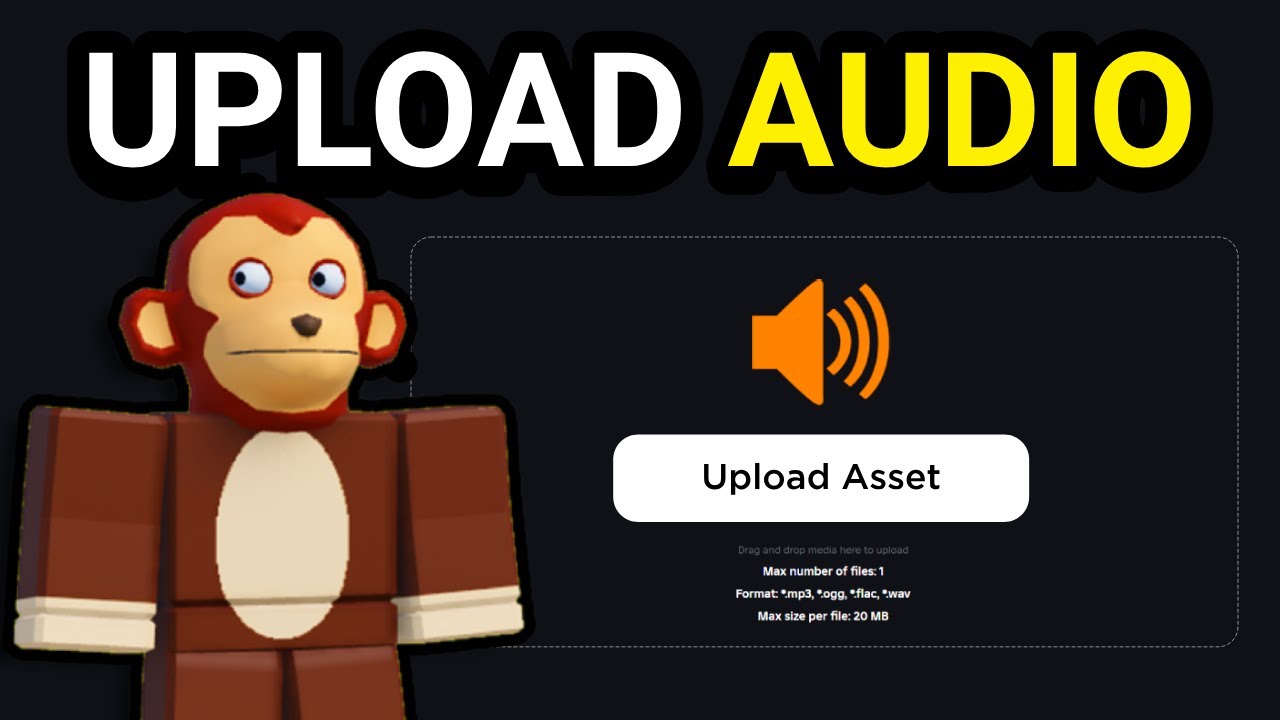
How Do I Upload Audio to Roblox?
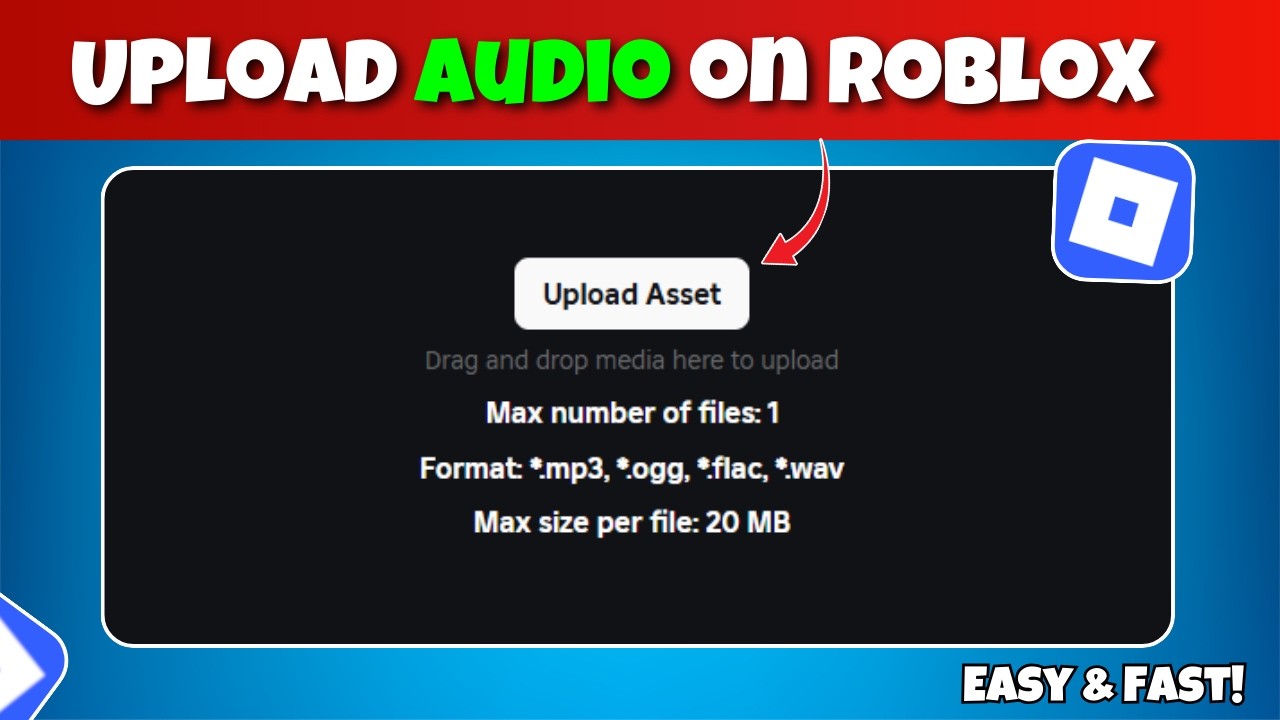
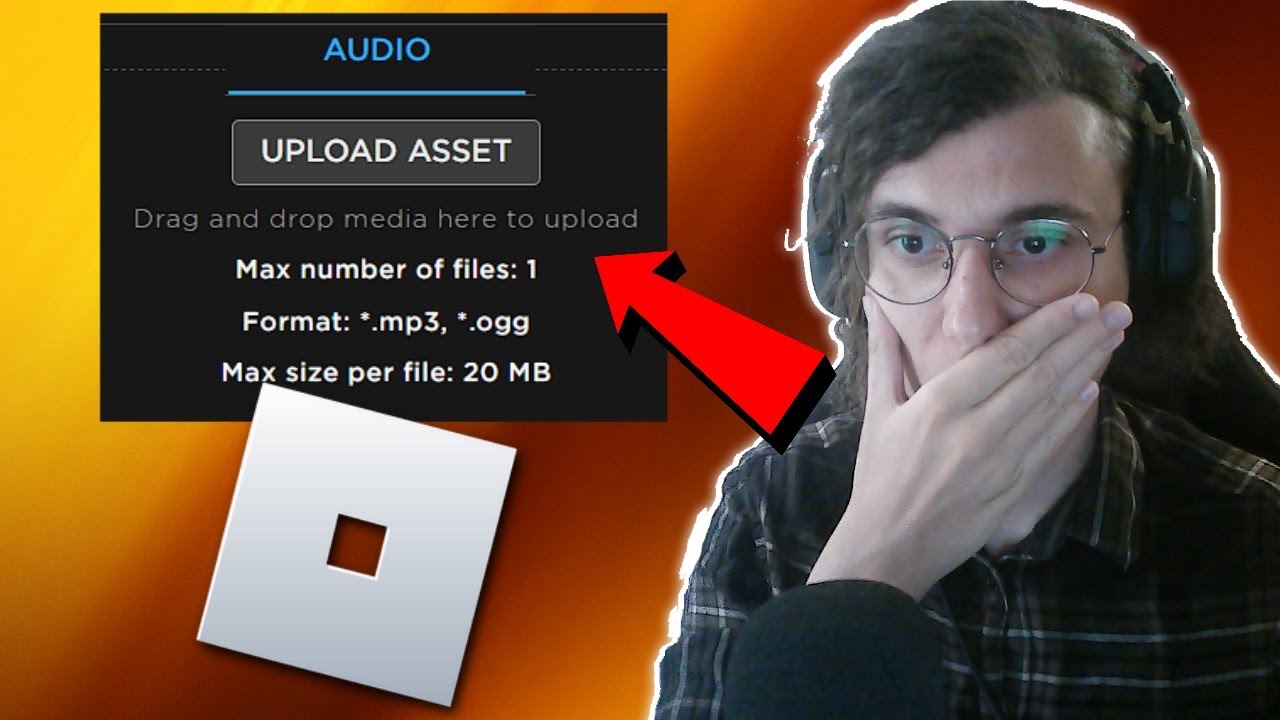
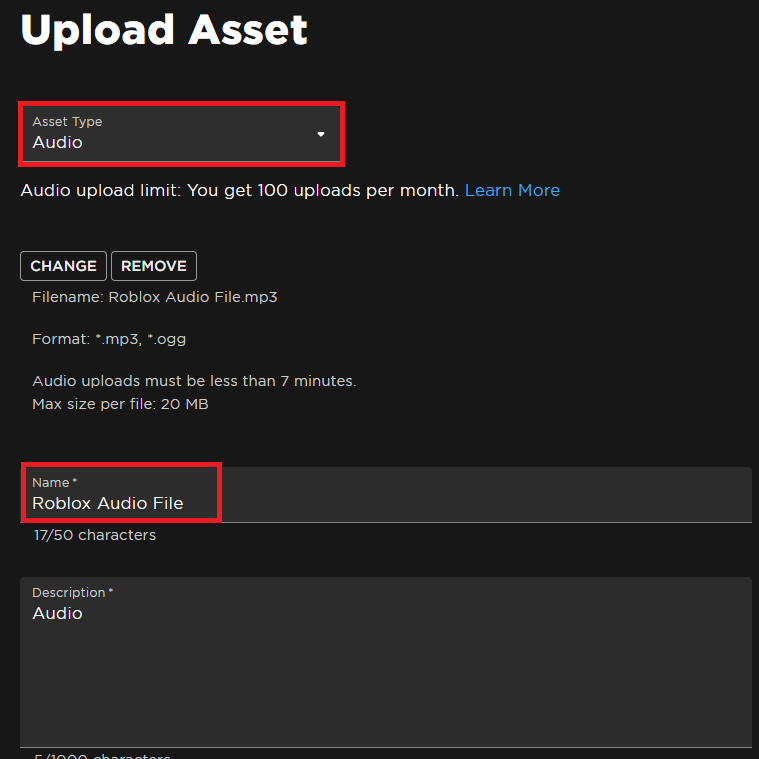
Uploading audio to Roblox is a straightforward process, though it has specific requirements you'll need to follow to ensure success. First, you'll need a Roblox account with a premium subscription or sufficient Robux to cover the upload fee. Navigate to the Roblox Creator Hub, specifically the 'Develop' or 'Create' section. From there, select 'Audio' or 'Sound' from the assets menu. You'll then be prompted to upload your audio file. Remember, the file must be in .mp3 or .ogg format, with a maximum length of 7 minutes and a file size limit, typically around 20MB. After selecting your file, give it a descriptive name and an optional genre. Roblox's moderation team will review it, which can take anywhere from a few minutes to several hours. Once approved, the audio becomes available for use in your games. This structured process helps maintain content quality and safety across the platform.
What Are the Roblox Audio Requirements and Best Formats?
Roblox has clear guidelines for audio uploads to ensure a consistent and safe experience for its millions of users, many of whom are accessing games on mobile devices, where file size and optimization are crucial. The primary supported audio formats are MP3 and OGG. MP3 is generally preferred for its widespread compatibility and good compression, while OGG can offer better quality at similar or smaller file sizes, especially for longer tracks. Your audio should not exceed 7 minutes in length and typically has a file size limit of 20MB. For optimal in-game performance and to reduce loading times for players, it's advisable to keep audio files as small as possible without sacrificing quality. Aim for bitrates around 128 kbps for music and lower for sound effects. Ensure your audio is clear, free of excessive background noise, and appropriately mixed to prevent distortion. Adhering to these specifications helps your game run smoothly, a key factor for adult gamers who value performance and a seamless experience after a busy day.
How Much Does It Cost to Upload Audio on Roblox?
Uploading audio on Roblox isn't free, reflecting the platform's commitment to moderating user-generated content and managing server resources. The cost is typically denominated in Robux, Roblox's virtual currency. The exact amount can vary but generally depends on the length of the audio file. Shorter sound effects might cost a few dozen Robux, while longer music tracks can run into the hundreds. For instance, a 30-second sound effect might cost 35 Robux, whereas a 2-minute track could be 200 Robux. This system is designed to incentivize creators to upload purposeful, high-quality audio rather than a deluge of unnecessary files, and it helps cover the costs associated with content moderation and hosting. Gamers often juggle budgets for hardware upgrades or in-game purchases, so understanding these costs helps creators plan their expenses, ensuring they get good value for their Robux and invest wisely in their game's auditory appeal.
Can I Use Copyrighted Music on Roblox?
This is a critical question for any creator on Roblox, and the answer is a firm no, unless you have explicit permission or a license. Roblox takes copyright very seriously, and attempting to upload copyrighted music without proper authorization will lead to your audio being rejected by moderation, your account potentially receiving warnings, or even suspension. This applies to popular songs, movie soundtracks, and any other intellectual property you don't own or have rights to. To avoid these issues, focus on using royalty-free music, public domain audio, or original compositions. Many online libraries offer royalty-free sound effects and music specifically for game developers. This allows creators to build rich soundscapes without legal headaches, ensuring their hard work isn't wasted on content that will inevitably be removed. Staying within these guidelines is vital for long-term creative freedom and adhering to the platform's terms of service.
How Do I Add Audio to My Roblox Game in Studio?
Once your audio is uploaded and approved, bringing it to life in your Roblox game within Roblox Studio is the next step. First, open your game in Roblox Studio. You'll use a 'Sound' instance to play your audio. You can insert a 'Sound' object into a Part, a ScreenGui, or even Workspace, depending on whether you want 3D positional audio or background music. In the 'Properties' window of the Sound object, locate the 'SoundId' property. Here, you'll paste the Asset ID of your uploaded audio. You can find this ID in the Creator Hub under your audio assets. Crucial properties to adjust include 'Looped' (for repeating music), 'Playing' (to start immediately), and 'Volume'. For 3D sound, ensure the Sound object is parented to a Part and adjust 'RollOffMode' and 'RollOffMaxDistance' for spatial effects. Understanding these properties allows you to dynamically control how and when audio plays, creating an immersive experience for players. For example, a hidden treasure could emit a faint chime that gets louder as players approach, adding an exciting layer to exploration.
What Are Best Practices for Roblox Audio Design?
Effective audio design goes beyond just adding sounds; it's about crafting an immersive and engaging experience. For the busy adult gamer, a well-designed soundscape can significantly enhance relaxation and immersion. Here are some best practices:
- Variety and Context: Use a diverse range of sounds that fit the game's theme. Don't just pick generic sounds; consider the specific environment and action.
- Subtlety is Key: Not every action needs a loud sound. Sometimes, subtle ambient noises or quiet footsteps can be more effective than constant, overwhelming effects, contributing to a sense of realism.
- Mixing and Volume: Ensure your music, sound effects, and UI sounds are properly balanced. Players should be able to hear critical alerts over background music without having to manually adjust volumes constantly. Provide in-game volume controls if possible.
- Performance Optimization: Minimize the number of simultaneously playing sounds, especially 3D sounds. Use 'MaxDistance' property effectively for 3D sounds to prevent unnecessary audio rendering across the map. Pre-load sounds using 'PreloadAsync' where appropriate to avoid hitches.
- User Feedback: Use sound to provide immediate feedback for player actions, like collecting an item, taking damage, or completing a task. This can enhance skill-building and make the game feel more responsive.
- Accessibility: Consider players who might be hearing-impaired. While audio is crucial, ensure vital information isn't conveyed *only* through sound.
By following these practices, you'll create an auditory experience that complements your gameplay and keeps players engaged, reinforcing that value for money and enjoyable experience they seek.
Why Is My Roblox Audio Failing to Upload?
Encountering an upload failure can be frustrating, especially when you're on a tight schedule. Several common reasons can cause your Roblox audio upload to fail. The most frequent issues include: Incorrect File Format – ensure your file is strictly .mp3 or .ogg. Exceeding File Size/Length Limits – remember the 20MB and 7-minute restrictions. Files that are too long or too large will be rejected. Copyright Infringement – if Roblox's automated or manual moderation detects copyrighted material without proper licensing, your upload will fail, and you could face account penalties. Moderation Queue Delays – sometimes, especially during peak times, the moderation queue can be extensive, leading to your audio appearing to 'fail' when it's just stuck in a long review process. Network Issues – a unstable internet connection can interrupt the upload process. Double-check your connection and try again. If you've checked all these points and are still having trouble, consult the Roblox Developer Hub for the latest guidelines or reach out to Roblox support. Persistent issues often point to a subtle detail missed in the file preparation or a temporary platform-side problem.
How Can I Optimize Roblox Audio for Performance?
Performance optimization is key for a smooth gaming experience, particularly for players on older hardware or mobile devices, which currently dominate much of the gaming landscape. Poorly optimized audio can cause lag and stuttering. Here's how to keep your game running smoothly:
- Minimize File Sizes: As mentioned, use efficient compression (like 128 kbps MP3 for music, or lower for SFX) and keep tracks as short as possible. Trim silence.
- Use 'RollOffMode' and 'RollOffMaxDistance' Wisely: For 3D sounds, these properties are crucial. Set a sensible 'MaxDistance' so sounds don't attempt to render across the entire map, wasting resources. 'InverseSquare' or 'Linear' rolloff modes can affect CPU usage; experiment to find the best balance.
- Limit Concurrent Sounds: While Roblox Studio can handle many sound instances, playing too many unique sounds simultaneously can strain the client's resources. Group similar sounds or use sound pooling techniques if you have many repeating effects.
- Preload Important Sounds: Use
ContentProvider:PreloadAsync()for essential audio assets when a player joins or enters a new area. This prevents hitches when the sound first needs to play, improving perceived performance. - Stream Long Tracks: For very long background music, consider if it's truly necessary to have it fully loaded at all times or if a shorter loop could achieve a similar effect. Roblox generally handles streaming efficiently, but local caching can still be an issue.
- Monitor Performance: Use Roblox Studio's built-in 'MicroProfiler' and 'Developer Console' to identify if audio is contributing significantly to performance bottlenecks.
By implementing these optimizations, you ensure that your game remains accessible and enjoyable for a broader audience, reducing frustration for players who might be gaming on limited hardware.
FAQ Section
What kind of audio can I upload to Roblox?
You can upload custom sound effects, music, voice lines, and ambient sounds that you own or have the proper licenses for, typically in MP3 or OGG formats.
Are there free audio libraries for Roblox creators?
Yes, many websites offer royalty-free sound effects and music that are safe to use in Roblox, such as Freesound.org, OpenGameArt, and Kevin MacLeod's Incompetech.
How long does Roblox audio moderation take?
Audio moderation can vary, often taking a few minutes to several hours. During peak times or for complex files, it might take longer. Automated systems usually process quickly, but manual review can extend the wait.
Can I update uploaded audio without re-uploading?
No, once an audio asset is uploaded and approved, it cannot be directly edited. If you need to change an audio file, you must upload it as a new asset and update its Asset ID in your game.
What if my audio is too long for Roblox?
If your audio exceeds the 7-minute limit, you'll need to trim it down. Consider breaking longer pieces into shorter, looped segments or different tracks that play sequentially to fit within the limits.
Can I make my Roblox audio private?
All uploaded audio assets are generally public within the Roblox Creator Hub, meaning other creators can see and potentially use them if they are marked as 'free' or if you set permissions. However, you control if and where they are used in your specific games.
Conclusion
Creating compelling audio for your Roblox games is an incredibly rewarding process that elevates the entire player experience. For US gamers who prioritize meaningful engagement and relaxation in their limited free time, high-quality sound can be the secret ingredient that keeps them coming back. By understanding the upload process, adhering to requirements, respecting copyright, and applying smart design and optimization techniques, you're not just adding sounds; you're crafting an auditory world that resonates deeply with your audience. Remember, every chime, every melody, and every ambient whisper contributes to the overall immersion and enjoyment your game offers. What's your biggest challenge in bringing your game's audio vision to life? Comment below and let's find a solution together!
Learn to upload custom audio files to Roblox, understand critical audio requirements including file types and moderation policies, discover methods to add sound effects and music directly within Roblox Studio, identify common pitfalls such as copyright issues and upload failures, and apply best practices for optimizing audio quality and game performance. This guide also covers cost implications and offers solutions for busy creators aiming for high-quality, engaging user experiences.
35


How To Make Audio Public On Roblox 2026 Is It Possible YouTube . How To Make A Sound System In 30 Seconds Roblox Studio YouTube Hqdefault . How To Upload Audio To Roblox 2026 FULL GUIDE YouTube . Roblox Studio How To Make SOUND REGIONS Area NO SCRIPTING YouTube . How To Add Audio In Roblox Studio Step By Step YouTube



How To Upload Audio To Roblox Studio Full Guide YouTube . How To Make Your Own Sounds On Soundboard Roblox Voicemod Soundboard . How To Make A Sound In Roblox . Roblox Audio Your Guide To Finding And Using Sounds Make Roblox Audio Step 14 . How To Add Your Own Music In Roblox Studio Quick Guide YouTube



How To Make A Part Play A Audio In Roblox Studio YouTube . ROBLOX STUDIO How To Make An Audio Visualizer YouTube . How To Upload Audio To Roblox UPDATED 2026 YouTube . How To Get A Soundboard On Roblox 2026 Best Soundboard For Roblox . How To Make A Sound Play When Clicked On A Part Roblox Studio



How To Create SOUND EFFECTS In Roblox Studio YouTube . How To Make Audio In Your Roblox Game It Works YouTube . How To Make A Part Play Audio In Roblox Studio YouTube . How To Make Audio Public On Roblox Roblox How To Upload YOUR OWN . How To Make Audio Maker Intro For Roblox BECOME A REAL AUDIO MAKER AND



How To Make Audio Public Roblox Full Tutorial YouTube . How To Upload Audio To Roblox 2026 Upload Music To Roblox Studio . HOW TO MAKE AN AUDIO ON ROBLOX TUTORIAL Robux Required YouTube . How To Upload Audio To Roblox 2026 Add Your Own Sounds Music . How To Upload Audio To Roblox 2026 YouTube


Roblox How To Upload YOUR OWN AUDIO For Free YouTube . Roblox Audio Your Guide To Finding And Using Sounds 3 Upload Audio Asset. How To Make Audio Public On Roblox 2026 YouTube . HOW TO MAKE ROBLOX AUDIO PUBLIC 2026 FULL GUIDE YouTube . How To Find Sound ID On Roblox 2026 Step By Step Copy Song ID




How To Add AUDIO In Roblox Studio TUTORIAL YouTube . How To Upload Audio To Roblox Studio Easy YouTube . How To Create Audio On Roblox Mobile FULL GUIDE YouTube . Sounds Tutorial In ROBLOX Studio YouTube . How To Upload Audio To Roblox Full Guide YouTube