Unlock the full potential of your Roblox Studio creations by mastering how to add text to your games. This comprehensive guide, tailored for busy US gamers who balance their passion with life's demands, dives deep into text implementation, customization, and best practices. Whether you're displaying vital game information, crafting immersive UI elements, or building interactive player experiences, understanding text in Roblox Studio is a fundamental skill. We'll cover everything from basic static labels to dynamic, scripted messages, ensuring your game provides clear communication and an engaging user interface. Learn how to optimize text for performance and mobile compatibility, avoid common pitfalls, and make your game truly stand out in 2026. This resource will help you build compelling narratives and intuitive game mechanics efficiently, allowing you more time to enjoy your own gaming sessions.
Q: What is the most basic way to display text on a player's screen in Roblox Studio?
A: The most basic way to display text on a player's screen is by using a TextLabel parented under a ScreenGui. First, insert a ScreenGui into StarterGui, then insert a TextLabel into that ScreenGui. You can then modify the TextLabel's 'Text' property in the Properties window to show your desired message, which will appear on the player's screen.
Q: How can I make text update dynamically based on game events like score changes?
A: To make text dynamic, you'll need to use a LocalScript. Attach a LocalScript to your TextLabel and use it to access and update the TextLabel's 'Text' property based on game events. For instance, you can connect to a 'Changed' event of a value (like a player's score) and update the TextLabel's 'Text' property within that event's function.
Q: What properties are essential for customizing the look of my text in Roblox Studio?
A: Essential properties for customizing text include 'Text' for the content, 'Font' to choose the typeface, 'TextSize' or 'TextScaled' for size, 'TextColor3' for color, and 'TextStrokeTransparency' and 'TextStrokeColor3' for outlines. 'TextXAlignment' and 'TextYAlignment' control text positioning within its container, ensuring readability and visual appeal.
Q: Can I put text directly onto 3D objects in the game world, not just on the screen?
A: Yes, you can place text directly onto 3D objects using a SurfaceGui. Insert a SurfaceGui into the desired Part, then add a TextLabel into the SurfaceGui. In the SurfaceGui's properties, you can select which 'Face' of the part the text will appear on. This is great for in-world signs, scoreboards, or contextual labels.
Q: What is RichText and why should I consider using it for my game's text?
A: RichText is a feature that allows you to apply multiple formatting styles (like bold, italics, color, or stroke) within a single TextLabel or TextBox using simple XML-like tags. You enable it by setting the 'RichText' property to true. It's beneficial because it allows for more expressive and visually engaging text without requiring multiple UI elements, making your UI cleaner and more dynamic.
Q: How do I get player input through text, like for a chat system or username entry?
A: To get player text input, use a TextBox UI element. Players can type directly into a TextBox. You then attach a LocalScript to the TextBox and use events like 'FocusLost' (which fires when the player clicks away or presses Enter) or 'TextCommitted' (specifically for when Enter is pressed) to capture the player's entered text from the TextBox's 'Text' property.
Q: My text looks bad on mobile. What's the main reason and how can I fix it?
A: Text often looks bad on mobile due to fixed pixel sizes not scaling correctly. The main fix is to use UI scaling. Set the TextLabel's 'TextScaled' property to true, and use 'Scale' for its 'Position' and 'Size' properties rather than 'Offset'. Additionally, employing 'AnchorPoint' and testing with Roblox Studio's device emulator or actual mobile devices helps ensure text remains legible and well-placed across various screen sizes.
Hey fellow gamers! Ever felt like your awesome Roblox creation was missing that crucial piece of information or a touch of personality? Maybe you needed a clear objective for players, a score display, or just a fun welcome message. For many of us who balance epic raids with work and family, finding quick, reliable ways to enhance our games in Roblox Studio without getting bogged down in complex coding is key. We want to build, play, and connect, not spend hours troubleshooting.
You're not alone. US gamers, with an average age around 36, spend a significant chunk of their free time gaming, often 10+ hours a week. A huge 87% play regularly, and a growing number are diving into creation on platforms like Roblox. We value clear communication, intuitive design, and efficient tools that let us jump back into the action or relax with friends faster. That's why mastering something as fundamental as how to add text in Roblox Studio is a game-changer. It's not just about words on a screen; it's about guiding players, building immersion, and enhancing the overall experience. Forget the hype; let's get down to practical solutions that elevate your game and fit into your busy schedule.
This guide will equip you with all the knowledge you need, from simple static text to dynamic, interactive displays, ensuring your games are not only fun to play but also easy to understand and navigate, especially crucial in today's mobile-dominant gaming landscape.
What is the simplest way to add static text in Roblox Studio?
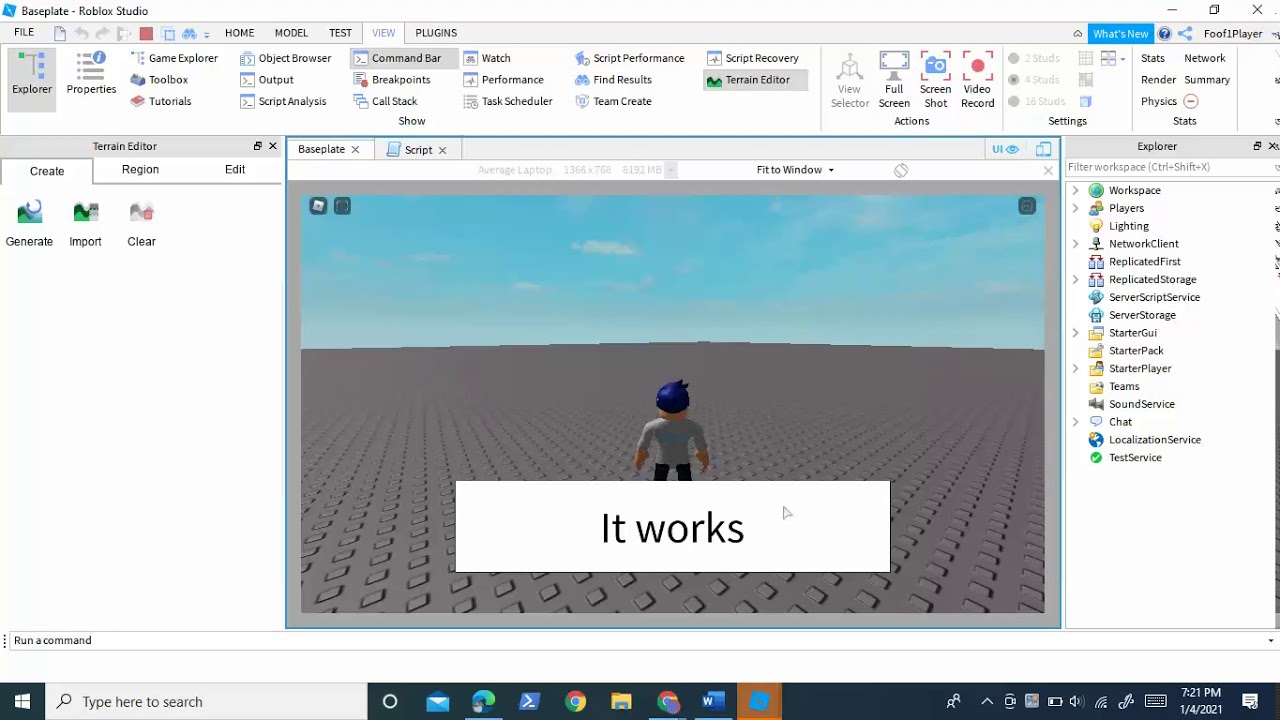
Adding static text in Roblox Studio is incredibly straightforward and often the first step for new developers. The easiest method involves using a TextLabel within a ScreenGui. ScreenGuis are UI containers that sit on the player's screen and are visible regardless of where their camera is positioned. This makes them perfect for HUD elements, menus, or informational displays.
Here's how to do it:
Open Roblox Studio and your desired project.
In the Explorer window, hover over 'StarterGui', click the '+' icon, and select 'ScreenGui'.
Inside the newly created 'ScreenGui', click the '+' again and choose 'TextLabel'.
Select the 'TextLabel' in the Explorer. In the Properties window, locate the 'Text' property. Here, you can type your desired static message.
You can then use the 'Scale' and 'Position' properties in the Layout section, or simply drag and resize the TextLabel directly in the 3D viewport to place it where you want on the screen.
This method provides a quick way to get text onto your player's screen without any scripting, ideal for titles, instructions, or fixed game information.
How do I create dynamic text display with scripting?
Dynamic text is where the real magic happens, allowing your game to react and provide real-time information. This involves using a LocalScript or a Script to change the TextLabel's properties during gameplay. For instance, you might want to display a player's score, remaining time, or a welcome message personalized to them.
To make text dynamic, you'll typically attach a LocalScript to the TextLabel or a parent UI element like a ScreenGui. Here’s a basic example for a score display:
Follow the steps above to create a TextLabel inside a ScreenGui.
Inside the TextLabel, click the '+' icon and add a 'LocalScript'.
In the LocalScript, you can write code like this (this is a simplified example, assuming a 'score' value exists somewhere or is updated via other scripts):
local Player = game.Players.LocalPlayerlocal ScoreTextLabel = script.ParentScoreTextLabel.Text = 'Score: ' .. Player.leaderstats.Score.ValuePlayer.leaderstats.Score.Changed:Connect(function()ScoreTextLabel.Text = 'Score: ' .. Player.leaderstats.Score.Valueend)
This script updates the text whenever the player's score changes. Dynamic text is crucial for engaging gameplay, offering immediate feedback to players and adapting to their actions, which is essential for modern gaming experiences, especially in social games where performance feedback drives interaction.
Can I customize text appearance like font and color?
Absolutely! Customizing text appearance is vital for creating a polished and branded game experience. Roblox Studio offers a robust set of properties to control how your text looks, ensuring it fits your game's aesthetic and is easily readable by players. Remember, readability is key, especially for players on mobile devices, which account for a massive portion of the Roblox user base.
When you select a TextLabel in the Explorer, its Properties window becomes your control panel:
Font: The 'Font' property lets you choose from a wide array of built-in fonts, like Arial, SourceSansPro, or Fantasy. Experiment to find one that matches your game's theme.
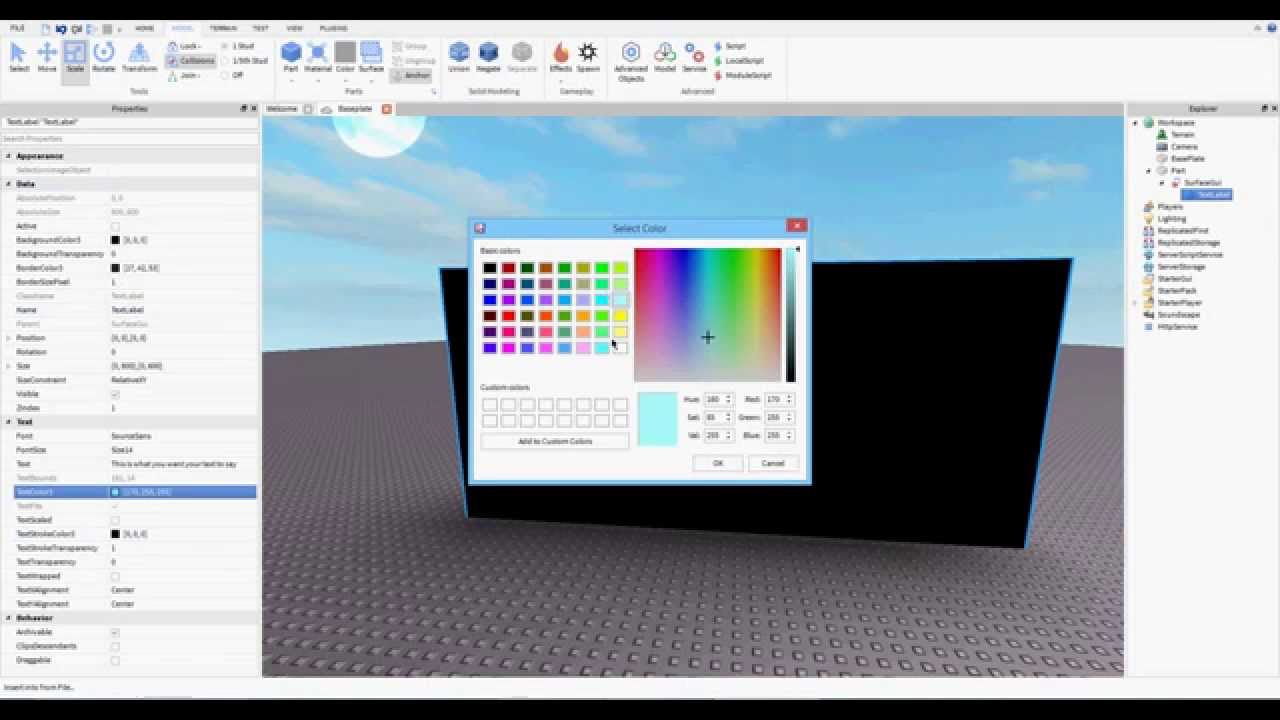
TextColor3: This property controls the color of your text. You can select a color using the color picker or input RGB values.
TextSize: Defines the font size. You can set a fixed size or use 'TextScaled' to automatically adjust the text size to fit within the TextLabel's boundaries, which is great for responsive UI.
TextTransparency: Makes your text more or less opaque.
TextStrokeTransparency and TextStrokeColor3: Add an outline to your text, enhancing visibility against busy backgrounds.
TextXAlignment and TextYAlignment: Control the horizontal and vertical alignment of your text within the TextLabel's box.
Thoughtful customization can significantly improve player engagement and make your game feel more professional.
What are common uses for text in Roblox games?
Text is a cornerstone of effective game design in Roblox, serving many critical functions that enhance player experience. For gamers who enjoy skill-building and social play, clear text communication is paramount.
Common uses include:
User Interface (UI): Displaying health, score, time, currency, and inventory details. A well-designed UI, heavily reliant on text, helps players track their progress and make informed decisions.
Game Instructions & Tutorials: Guiding new players through game mechanics, explaining objectives, or providing hints. Clear tutorials reduce frustration and improve player retention.
Dialogue & Storytelling: Character dialogue, quest text, and lore elements contribute to narrative immersion. Rich text features can make dialogue more expressive.
World Text: Signs, labels on objects, names above players' heads, or informational pop-ups in the game world. This type of text adds realism and context to environments.
Chat Systems: Enabling players to communicate with each other, fostering social interaction which is a massive draw for the modern gamer community. Many players spend hours socializing in games or on platforms like Discord.
Effective use of text ensures players understand your game and can interact with it meaningfully.
How do I make text interactive for players?
Beyond displaying information, text can be a direct point of interaction for players, transforming your UI into a dynamic and responsive system. Interactive text usually involves TextButton or TextBox elements, combined with scripting.
TextButton: This UI element looks like a TextLabel but can be clicked. You can attach a LocalScript to a TextButton and use the
MouseButton1Clickevent to trigger actions when a player clicks it. For example, a 'Play' button, a 'Shop' button, or a choice in a dialogue tree.script.Parent.MouseButton1Click:Connect(function()print('Button Clicked!')-- Your action hereend)TextBox: This allows players to input their own text, useful for chat, naming characters, or entering codes. Attach a LocalScript and use events like
FocusLost(when the player clicks outside the box) orTextCommitted(when they press Enter) to capture their input.script.Parent.FocusLost:Connect(function(enterPressed)if enterPressed thenprint('Player entered: ' .. script.Parent.Text)endend)
These interactive elements are crucial for engaging design, enabling players to participate actively in your game world.
What are the best practices for text placement and visibility?
Good text placement and visibility are paramount for a positive player experience. Poorly placed or hard-to-read text can quickly lead to frustration, especially for gamers trying to relax after a long day or quickly check stats during intense gameplay. Think about the average gamer who might be playing on a phone during a commute or a PC after work – clarity is king.
Clarity over Clutter: Avoid overwhelming players with too much text at once. Prioritize essential information and use clear, concise language.
Strategic Placement: Position important UI text where players naturally look (e.g., top-left for info, bottom-right for hotkeys). For in-world text, ensure it doesn't obstruct gameplay or important visuals.
Contrast is Key: Ensure there's sufficient contrast between your text color and its background. Light text on a dark background or vice versa works best. Use TextStroke to make text pop.
Responsive Design: Design your UI with 'TextScaled' and 'AnchorPoint' properties in mind. Roblox games are played on diverse devices (PC, mobile, console), so UI needs to adapt. A text element that looks great on a large monitor might be illegible or cover half the screen on a mobile phone.
Consistency: Maintain a consistent font, size, and color scheme across your game for a professional look and feel.
Following these practices ensures your messages get through effectively, enhancing usability and player enjoyment.
Are there performance considerations when adding lots of text?
Yes, while Roblox Studio is highly optimized, adding an excessive amount of UI elements, including TextLabels and TextBoxes, can impact game performance, especially on lower-end devices or older mobile phones. With mobile gaming dominance being a significant trend among US gamers, optimizing for performance is not just a nice-to-have, it's a must.
Minimize Unnecessary Elements: Only display text when it's needed. If a UI element isn't visible, consider making its 'Visible' property false rather than just moving it off-screen.
Recycle UI Elements: For rapidly changing text (like damage numbers), instead of creating a new TextLabel every time, try to reuse existing ones by moving and updating their text.
Use RichText Wisely: While RichText offers great customization, overusing it with complex formatting in many elements can add a slight overhead. Use it where it truly enhances the experience.
Efficient Scripting: If you're updating dynamic text frequently with scripts, ensure your scripts are optimized. Avoid unnecessary loops or computations. Only update text when its underlying data actually changes.
Texture vs. Text: For very static, decorative text that won't change, sometimes using a pre-rendered image (texture) can be more performant than a TextLabel, though less flexible.
Balancing visual appeal with performance ensures a smooth experience for all your players, regardless of their hardware.
How can I ensure my text looks good on mobile devices?
Optimizing text for mobile devices is crucial, given that a massive portion of the Roblox player base engages on smartphones and tablets. Players on the go need text that is clear, readable, and doesn't overwhelm a smaller screen. This is a common pain point for creators if not addressed early.
Use UI Scaling: Instead of fixed pixel sizes, leverage UIAspectRatioConstraint and UIStroke elements in combination with 'Scale' for Position and Size. This ensures your UI elements, including text, scale proportionally across different screen resolutions.
TextScaled Property: For TextLabels, set 'TextScaled' to true. This automatically adjusts the text size to fit within the TextLabel's bounds, preventing text from being cut off or appearing too small.
AnchorPoint: Understand and utilize 'AnchorPoint' to precisely control how UI elements scale and position themselves relative to their parent container. This prevents text from drifting off-screen.
Test on Device: The best way to ensure mobile compatibility is to regularly test your game on actual mobile devices. Roblox Studio's 'Emulator' feature can help, but nothing beats real-world testing.
Minimalism: On mobile, less is often more. Keep text concise and avoid overly complex UI layouts that might feel cramped on a small screen. Gamers looking for quick fun on their phone appreciate simplicity.
Prioritizing mobile-friendly text ensures your game is accessible and enjoyable for the broadest possible audience, keeping up with 2026 gaming trends.
What are common pitfalls to avoid when using text?
Even experienced creators can stumble when it comes to text implementation. Being aware of common issues can save you a lot of headache and ensure a smoother development process, letting you spend more time gaming yourself.
Illegible Text: This is the biggest offender. Text that's too small, has poor color contrast, or an unreadable font frustrates players instantly. Always test readability on various screen sizes and lighting conditions.
Overlapping UI: TextLabels or other UI elements can overlap, obscuring crucial information. Use the 'ZIndex' property to control layering, ensuring important text is always on top.
Lack of Responsiveness: Failing to account for different screen resolutions means your UI will look broken on some devices. Always design with UI scaling in mind.
Hardcoded Text for Localized Games: If you plan for your game to reach a global audience, avoid hardcoding all your text directly into TextLabels. Instead, use Roblox's localization tools to store text strings, making it easy to translate your game into different languages.
Performance Hogs: Too many dynamic text updates or complex RichText operations can cause lag. Optimize your scripts and UI structure to maintain smooth framerates.
Ignoring User Input Validation: For TextBoxes, always validate player input. Don't assume players will type what you expect. Sanitize input to prevent exploits or inappropriate content.
Avoiding these pitfalls will lead to a more professional and player-friendly experience.
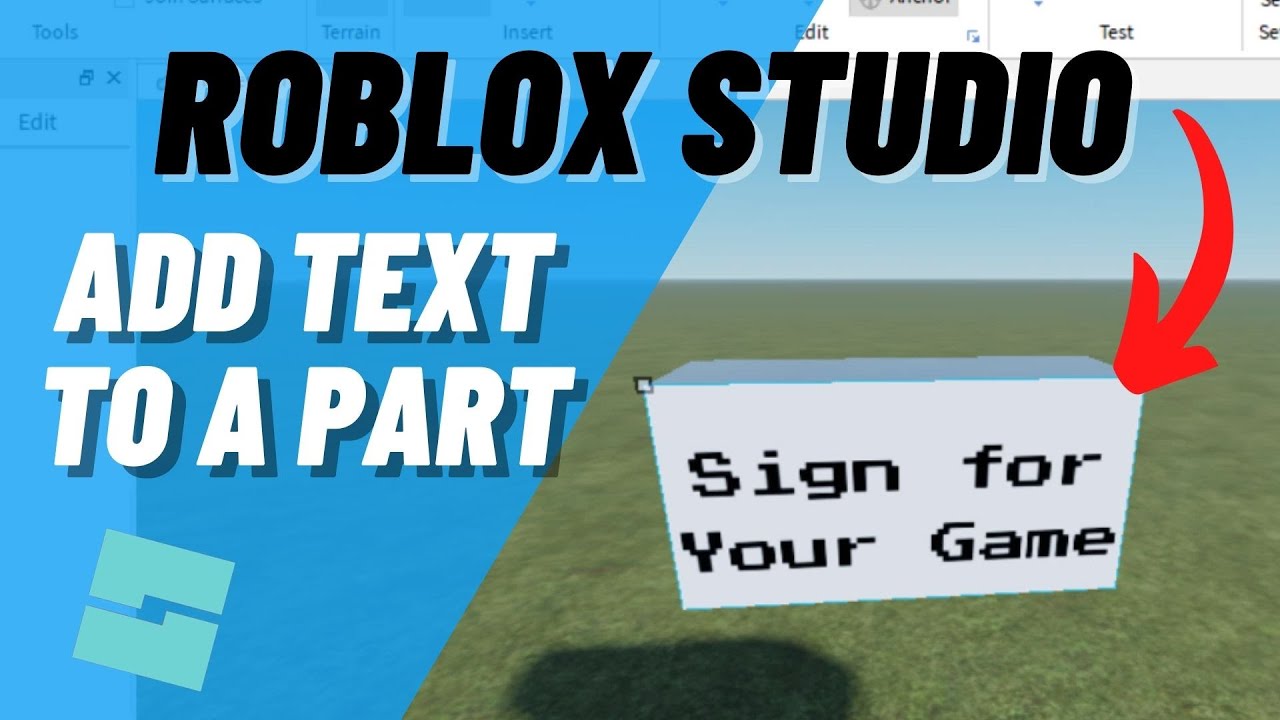
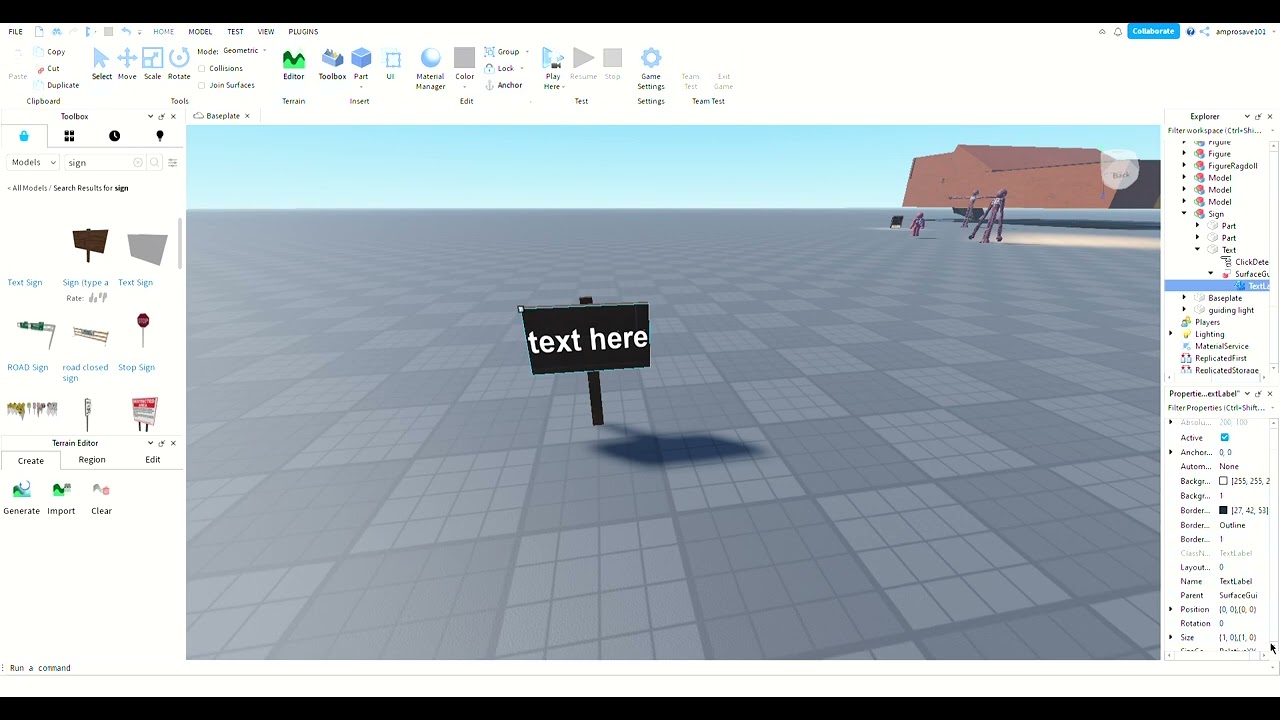
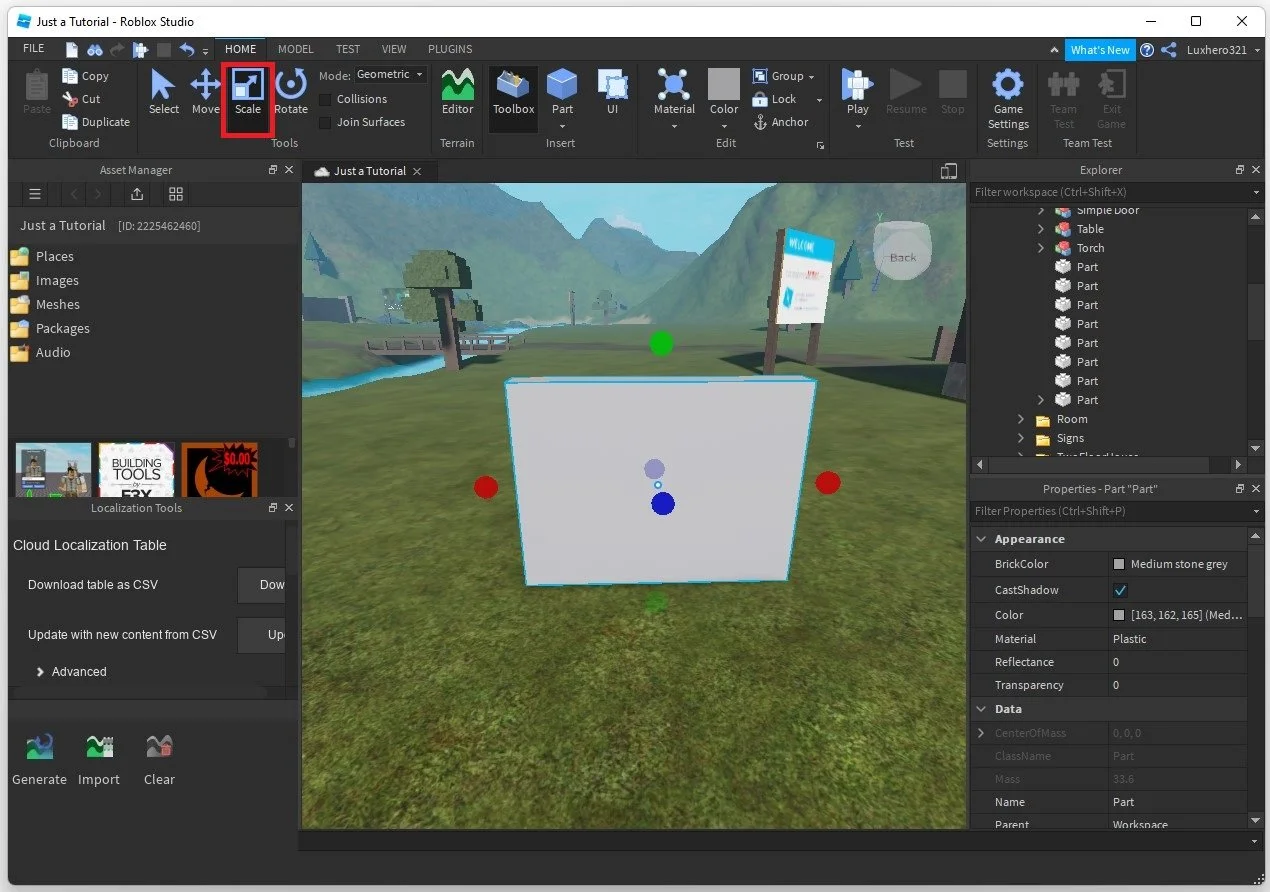
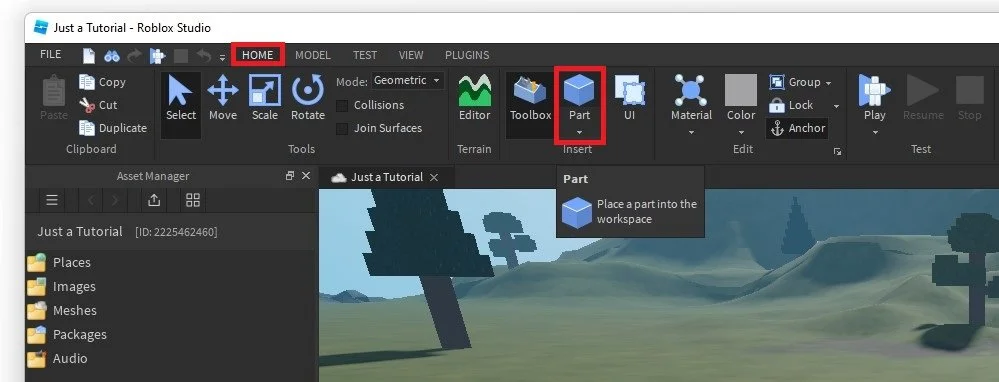
How to add Text on a Part in Roblox Studio?
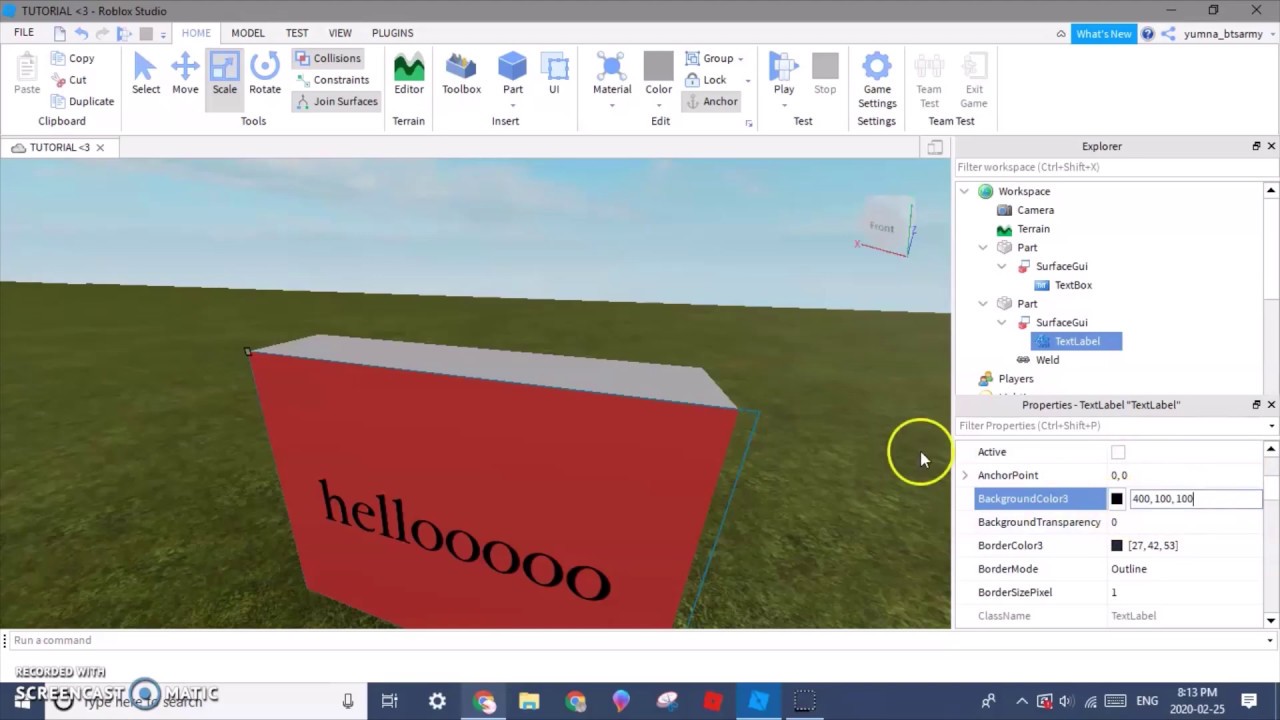
Adding text directly onto a 3D part in your game world, rather than on the player's screen, is done using a 'SurfaceGui'. This allows for immersive labels, signs, or information displays that are physically part of your environment.
In the Explorer, insert a 'Part' into your Workspace.
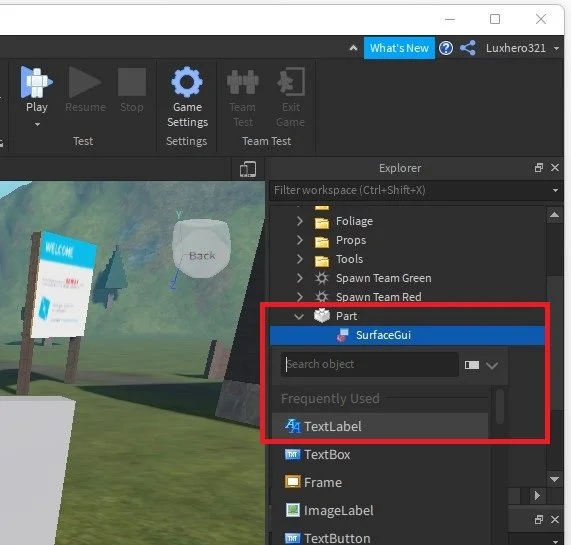
Inside that 'Part', click the '+' icon and add a 'SurfaceGui'.
Inside the 'SurfaceGui', click the '+' again and add a 'TextLabel'.
Select the 'SurfaceGui'. In its Properties window, you'll see a 'Face' property. This lets you choose which side of the part the text will appear on (Front, Back, Top, Bottom, Right, Left). Select the desired face.
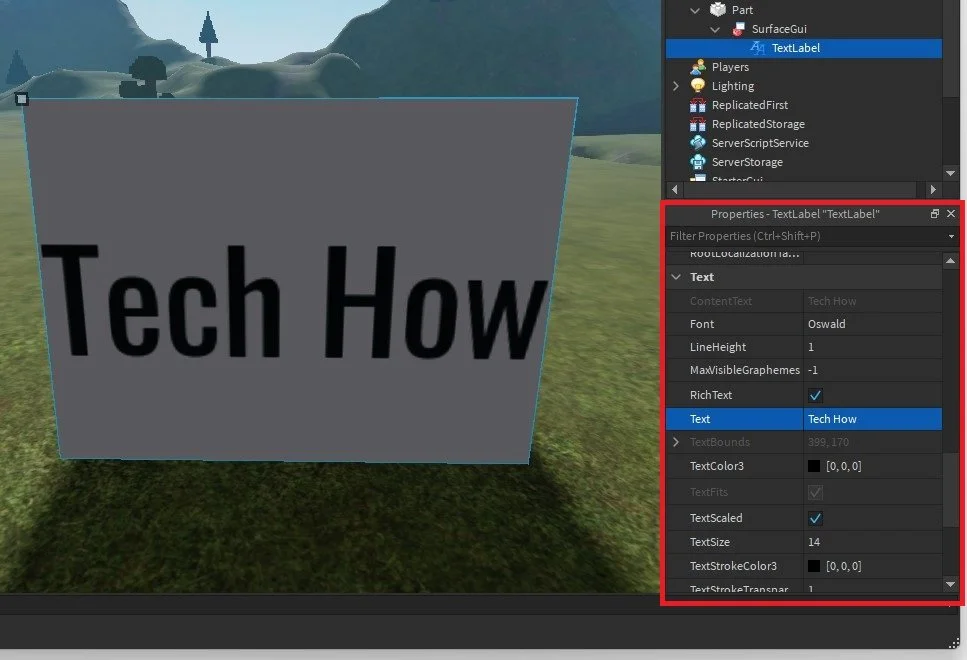
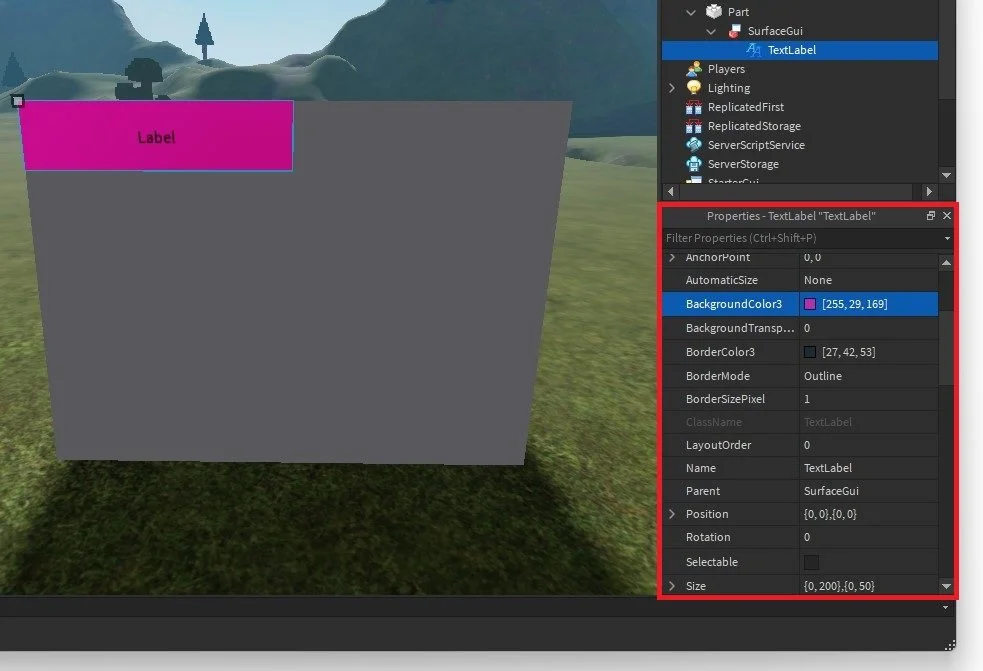
Now, select the 'TextLabel' within the 'SurfaceGui'. Adjust its 'Text', 'Font', 'TextColor3', 'TextSize', and other properties just like a regular ScreenGui TextLabel. You can also use 'Size' and 'Position' within the SurfaceGui to place the TextLabel accurately on the chosen face of the part.
This method is excellent for creating signs, scoreboards within the game world, or contextual labels for objects, adding another layer of immersion for players.
How to add a Text Label to a ScreenGui?
Adding a TextLabel to a ScreenGui is the most fundamental step for creating player-facing UI in Roblox Studio. It ensures your text is always visible on the player's screen, making it perfect for HUDs (Heads-Up Displays) and menus.
Navigate to the 'Explorer' window in Roblox Studio.
Find 'StarterGui' and click the small '+' icon next to it.
From the dropdown menu, select 'ScreenGui'. This creates a container for your UI elements that will be cloned to each player's GUI.
Now, click the '+' icon next to the newly created 'ScreenGui'.
From the dropdown, choose 'TextLabel'. This is your basic text display element.
With the 'TextLabel' selected in the Explorer, go to the 'Properties' window. Here you can change its 'Text', 'Font', 'TextSize', 'TextColor3', 'BackgroundColor3', and much more to customize its appearance and content. You can also drag and resize it directly in the 3D viewport.
This foundational step is crucial for building any interactive or informative UI in your Roblox game.
What is RichText in Roblox Studio and how to use it?
RichText is a powerful feature in Roblox Studio that allows you to apply different formatting styles within a single TextLabel or TextBox, without needing separate UI elements. This means you can have bold, colored, or italicized words all within one line of text, making your messages much more expressive and engaging. For creators who want to build immersive narratives or detailed information panels, RichText is an invaluable tool.
To use RichText:
Select your TextLabel or TextBox.
In the Properties window, find the 'RichText' property and set it to 'true'.
Now, in the 'Text' property, you can use special XML-like tags to format your text. For example:
Bold:
<b>This text is bold</b>Italic:
<i>This text is italic</i>Color:
<font color="rgb(255, 0, 0)">This text is red</font>or<font color="#FF0000">This text is red</font>Stroke:
<stroke color="rgb(0,0,0)" thickness="1">Text with outline</stroke>Multiple Styles: You can nest tags, for instance:
<b><font color="rgb(0, 0, 255)">Important Message</font></b>
RichText significantly enhances the visual appeal and expressiveness of your in-game text, allowing for more dynamic and eye-catching communication without excessive UI elements.
FAQ Section
How do I make text glow in Roblox Studio?
To make text appear to glow, you can either use a TextStroke with a bright color and slightly increased thickness, or duplicate the TextLabel, make the bottom one slightly larger and blurred (if possible with ImageLabel and text as image), and set its color to a glow effect. RichText also offers some options to enhance visual pop with color and stroke combinations.
Can I use custom fonts in Roblox Studio?
Currently, Roblox Studio only supports its own built-in font library. You cannot upload external font files directly. However, the available fonts are quite diverse and offer good options for most game styles. Always check the official documentation for the latest updates on font support.
What is the difference between a TextLabel and a TextButton?
A TextLabel is purely for displaying static or dynamic text. It doesn't inherently react to player input like clicks. A TextButton, on the other hand, is designed to be interactive; it displays text but also registers clicks, allowing you to trigger game actions through scripting when a player interacts with it.
How do I hide text after a certain time?
You can hide text using a script. In a LocalScript, set the TextLabel's 'Visible' property to true initially, then use task.wait(seconds) to pause the script for a desired duration, and finally set 'Visible' to false. For example: script.Parent.Visible = true; task.wait(5); script.Parent.Visible = false;
How do I get text input from a player?
To get text input from a player, you'll use a TextBox UI element. Attach a LocalScript to the TextBox and use its FocusLost event (checking if enterPressed is true) or TextCommitted event. This event fires when the player finishes typing and presses Enter or clicks away, allowing you to capture the text from the TextBox's 'Text' property.
Why is my text not showing up in Roblox Studio?
Common reasons for text not showing up include: the TextLabel's 'Visible' property is set to false; its 'TextColor3' is the same as its 'BackgroundColor3'; its 'Size' is too small; it's outside the parent UI element's bounds; its 'ZIndex' is lower than an overlapping element; or it's not parented correctly under a ScreenGui or SurfaceGui. Check the Explorer and Properties windows carefully.
Conclusion
Adding text in Roblox Studio is a fundamental skill that truly brings your games to life. From simple static labels for instructions to dynamic, interactive elements that engage players and drive narratives, mastering text is key to creating polished and enjoyable experiences. We've covered the basics of TextLabels, dynamic scripting, crucial customization options, and the importance of performance and mobile optimization. Remember, clear communication in your game leads to happier players who spend more time exploring your creations.
For us busy gamers, efficiency and effective tools are paramount. By applying these techniques, you're not just adding words; you're building a more intuitive, immersive, and successful game that stands out in the bustling Roblox universe of 2026. What's your biggest gaming challenge in Roblox Studio? Comment below!
Adding text labels TextBoxes ScreenGuis scripting text UI elements customization fonts colors interactivity dynamic text best practices mobile compatibility RichText game information
35



How To Add Text In Roblox Studio 2025 YouTube . How To Edit Text In Roblox Studio Tutorial YouTube . How To Add Text To A Part In Roblox Studio Tech How 6 Add Text Label. How To Add Text On Roblox Studio Easy Peasy Version YouTube . How To Add Text To A Part Roblox Studio Tutorial YouTube



Roblox Studio Tutorial Add Texts Button Etc In Roblox Studio YouTube . How To Add Text To A Part In Roblox Studio Tech How 9 Change Text In Part. How To Make 3D Text In Roblox Studio YouTube . HOW TO ADD TEXT TO A PART Roblox Studio Tutorials YouTube . How To Add Text To A Sign On Roblox Studio YouTube


How To Add Text To A Part In Roblox Studio Tech How 7 Text Properties. Roblox Studio How To ADD TEXT To A Part And Make A Sign YouTube . Easy Roblox Studio Tutorial How To Create Text Decal And Texture . ROBLOX How To Add The Text Into The Game In Roblox Studio Let S Do . How To Apply Custom Textures In Roblox Studio YouTube



How To Add Text Into A Part In Roblox Studio YouTube . How To Make Text Change And Loop With A Script In Roblox Studio YouTube . How To Add Text In A Part In Roblox Studio YouTube . How To Add Text To A Part In Roblox Studio Make A Sign YouTube . How To Add Text On A Part In Roblox Studio YouTube



How To Add Text To A Sign In Roblox Studio YouTube . How To Add Text In Roblox Studio 2025 YouTube Hqdefault . How To Add Text In Roblox Studio 2024 YouTube . HOW TO ADD ANY TEXT ON A ROBLOX SIGN ON ROBLOX STUDIO EASY AND BASIC . How To Add TEXT To A PART Roblox Studio YouTube




How To Add Text To A Part In Roblox Studio Tech How 1 Explorer. How To Put A Text In A Sign Or A Part Roblox Studio Tutorial YouTube . How To Add Text Above A Part In Roblox Studio YouTube . How To Add Text To A Part In Roblox Studio Tech How 3 Change Scale. How To Add People Roblox Easily Your 2026 Guide


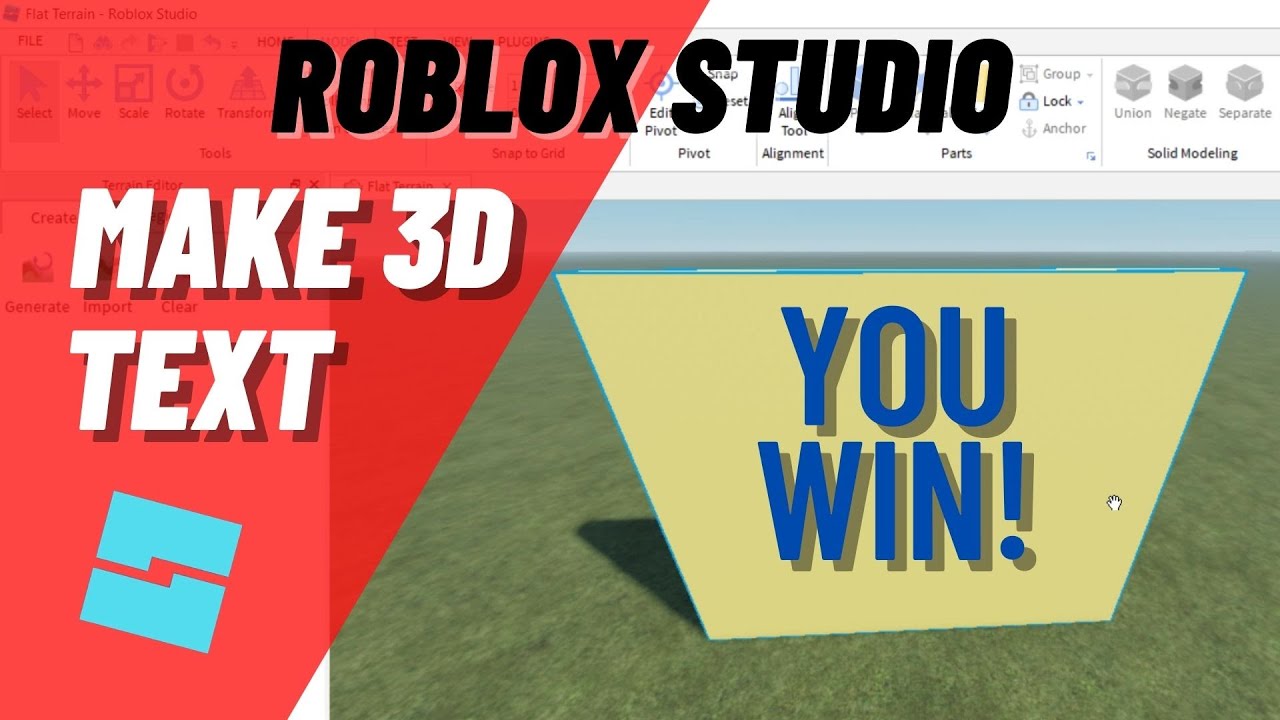
How To Make TEXT In Roblox Studio YouTube . How To Add Text To A Part In Roblox Studio Tech How 2 Add Part. How To Add Custom Fonts To Roblox Studio 2025 Step By Step YouTube . How To Add Text On An Part In Roblox Studio YouTube . Roblox Studio How To MAKE 3D TEXT Custom 3d Text Maker YouTube