Navigating the world of PC gaming means ensuring your setup is optimized for peak performance and seamless gameplay. One of the most fundamental yet sometimes tricky steps is understanding how to connect wifi to a gaming pc. This comprehensive guide is tailored for busy gamers who balance demanding careers and family life with their passion for digital adventures. We know your time is valuable so we cut through the noise providing clear actionable steps to get your gaming rig online fast. Whether you are building a new system troubleshooting connection issues or looking to boost your wireless performance this article covers everything from hardware essentials and driver installations to network optimization techniques. Dive into practical advice designed to help you unwind and excel in your favorite games without frustrating technical hiccups ensuring you can quickly jump into the action and connect with your friends online.
How do I connect my new gaming PC to my WiFi network for the first time?
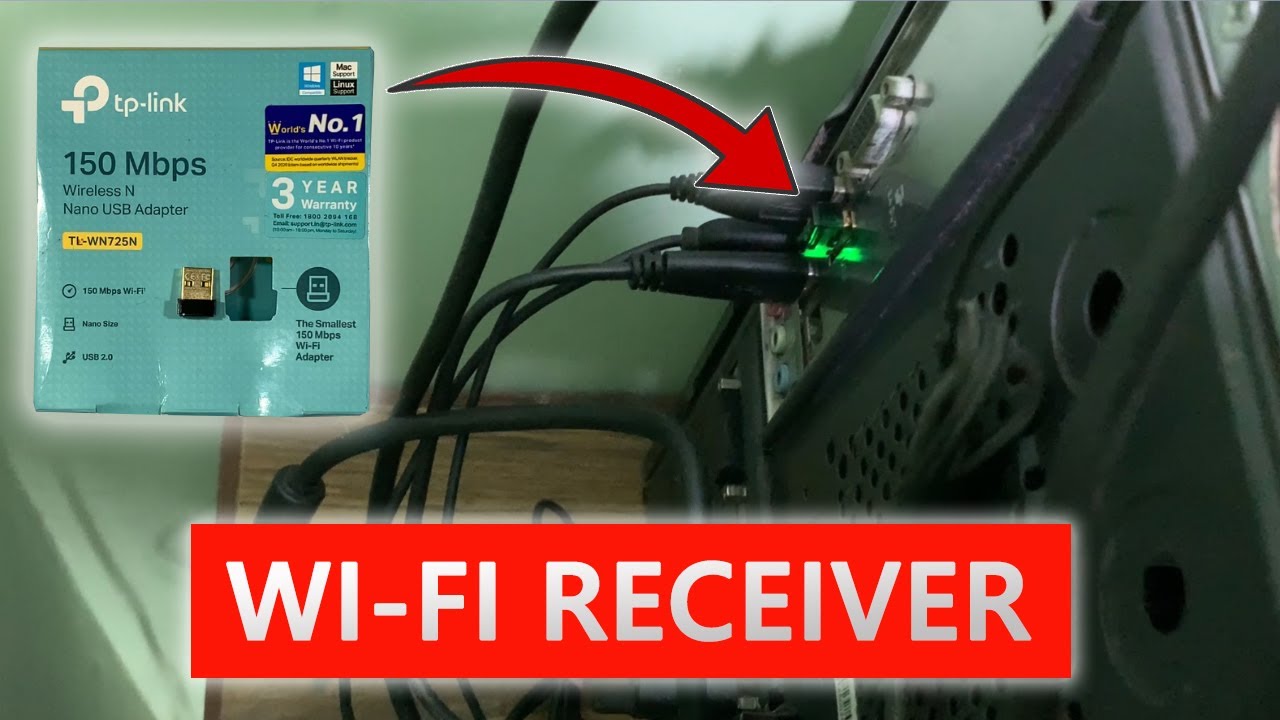
Connecting your brand-new gaming PC to WiFi is a straightforward process. First, ensure your PC has a WiFi adapter, either integrated into the motherboard or as a dedicated PCIe card or USB dongle. Most modern gaming rigs include this. Once your PC is powered on and Windows is set up, look for the WiFi icon in the bottom right corner of your taskbar. Click it, select your home network's name (SSID) from the list, enter your WiFi password when prompted, and hit Connect. Your PC should then establish a connection, letting you dive into your favorite games.
What if my gaming PC doesn't show any available WiFi networks?
If your gaming PC isn't detecting any WiFi networks, the first step is to verify that your WiFi adapter is correctly installed and its drivers are up-to-date. Open Device Manager (search for it in the Windows search bar) and expand 'Network adapters' to see if your WiFi card is listed and functioning without errors. If not, you may need to install or update its drivers, typically downloadable from your motherboard or adapter manufacturer's website. Also, ensure the WiFi adapter hasn't been accidentally disabled in Windows settings or via a physical switch on your PC or keyboard.
Why is my gaming PC's WiFi connection so slow or laggy compared to other devices?
Slow or laggy WiFi on a gaming PC can be incredibly frustrating. One common cause is an outdated WiFi adapter driver; ensure you have the latest version. Your PC's location relative to the router also matters; walls, large furniture, and other electronics can cause interference. Try moving your PC closer to the router or repositioning its antennas. Ensure you're connecting to the 5GHz band if available, as it offers faster speeds and less congestion than 2.4GHz. Additionally, check for background applications consuming bandwidth and consider enabling Quality of Service (QoS) on your router to prioritize gaming traffic.
Can I improve my gaming PC's WiFi signal without moving my router?
Yes, there are several ways to boost your gaming PC's WiFi signal without relocating your router. Upgrading your PC's internal PCIe WiFi card to a newer standard like WiFi 6E can provide a significant performance jump. You could also use a powerline adapter, which uses your home's electrical wiring to extend a wired internet connection, or a mesh WiFi system that creates a stronger, more consistent wireless network throughout your home. Lastly, ensure your PC's WiFi antennas are properly oriented and not blocked, potentially using extension cables to position them for better reception.
Is a USB WiFi adapter good enough for competitive gaming on PC?
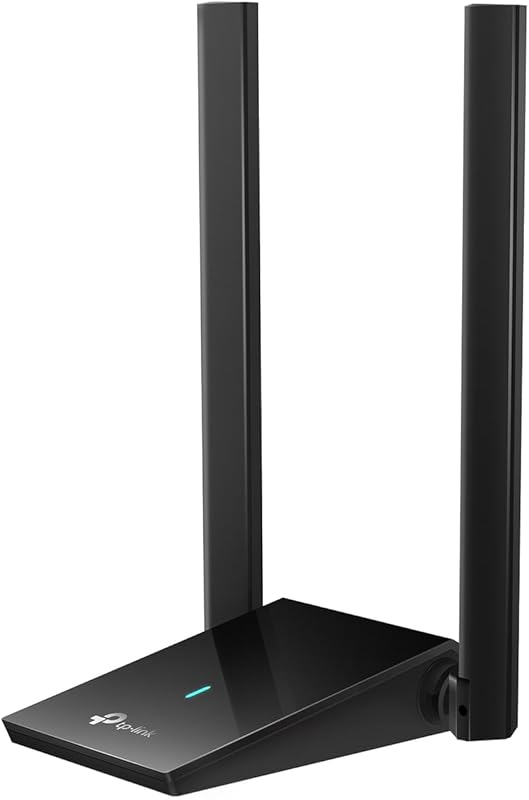
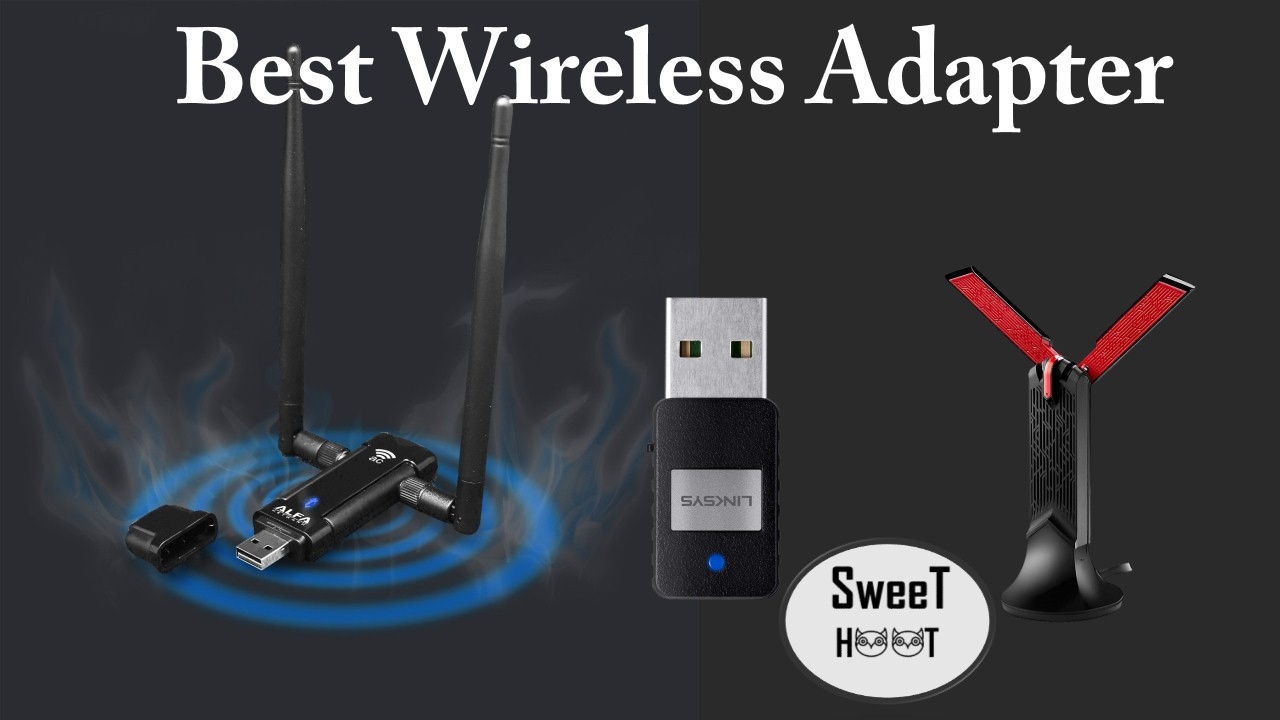
While convenient, a USB WiFi adapter is generally not ideal for competitive gaming. USB adapters can introduce slightly higher latency and are more susceptible to signal drops compared to internal PCIe cards, which offer a more stable and direct connection to your motherboard. For casual gaming, a high-quality USB 3.0 WiFi 6 adapter might suffice, but for competitive play where every millisecond counts, a dedicated PCIe WiFi 6 or WiFi 6E card is strongly recommended. It provides superior stability, lower ping, and higher bandwidth for a smoother, more reliable online experience.
How do I update my gaming PC's WiFi drivers for better performance?
Updating your gaming PC's WiFi drivers is crucial for optimal performance and stability. First, identify your WiFi adapter's manufacturer and model. You can usually find this in Device Manager under 'Network adapters'. Next, visit the official website of the manufacturer (e.g., Intel, Realtek, ASUS, TP-Link). Navigate to their support or driver download section, search for your specific model, and download the latest driver package compatible with your Windows version. Run the downloaded installer and follow the on-screen instructions. A PC restart is often required to complete the update and apply the changes effectively.
What are common WiFi settings I should check on my router for PC gaming?
For PC gaming, optimizing your router settings can significantly enhance your WiFi experience. Ensure your router's firmware is up-to-date. Enable Quality of Service (QoS) and prioritize your gaming PC or specific gaming traffic. If available, use the 5GHz band for your gaming PC, as it offers faster speeds and less interference. Consider changing the 5GHz channel to a less congested one using a WiFi analyzer app on your phone. Disabling Universal Plug and Play (UPnP) might improve security and potentially reduce connection issues for some users, though it's typically enabled for convenience. Experiment cautiously with one setting at a time.
Welcome fellow gamers! In a world where 87% of US gamers regularly dedicate an average of 10+ hours a week to their passion balancing epic quests with real-life responsibilities can be a challenge. The last thing you need after a long day is wrestling with your gaming PC just to get online. We know the frustration of a dropped connection mid-raid or a lag spike during a crucial clutch. You value relaxation fun and the camaraderie of social play but setup issues can quickly turn that into a headache. This guide is specifically for you the busy adult gamer who wants to optimize their performance get value for money and stay current with gaming trends without the usual tech jargon or hype. Let us cut through the complexity and show you exactly how to connect wifi to a gaming pc ensuring you spend more time gaming and less time troubleshooting.
Connecting your gaming PC to WiFi might seem straightforward but for optimal performance especially with fast-paced online titles there are nuances. A stable fast internet connection is as vital as your GPU or CPU. Recent trends show a significant rise in social gaming and cross-play across mobile PC and console platforms making reliable connectivity even more critical for staying in touch with your squad on Discord or diving into popular cozy games with friends. This article will walk you through every step from basic connection to advanced optimization helping you overcome common pain points and ensuring your gaming experience is as smooth as possible.
What Hardware Do I Need to Connect My Gaming PC to WiFi
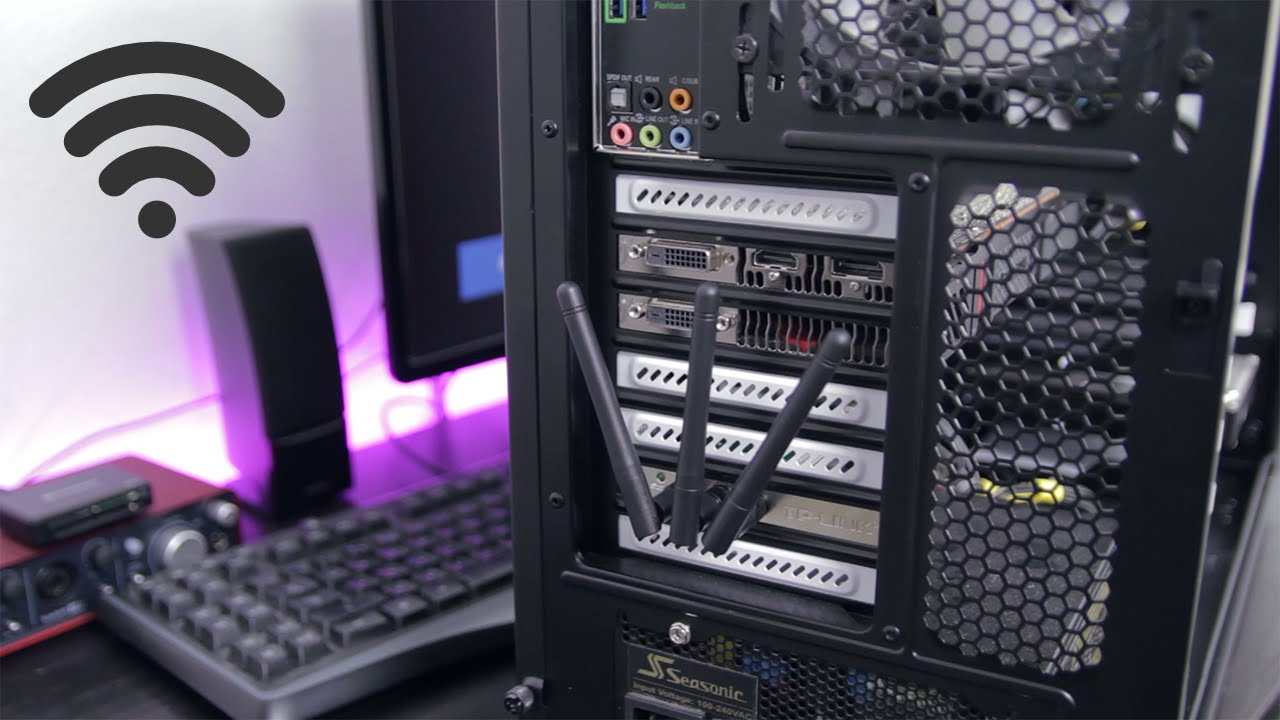
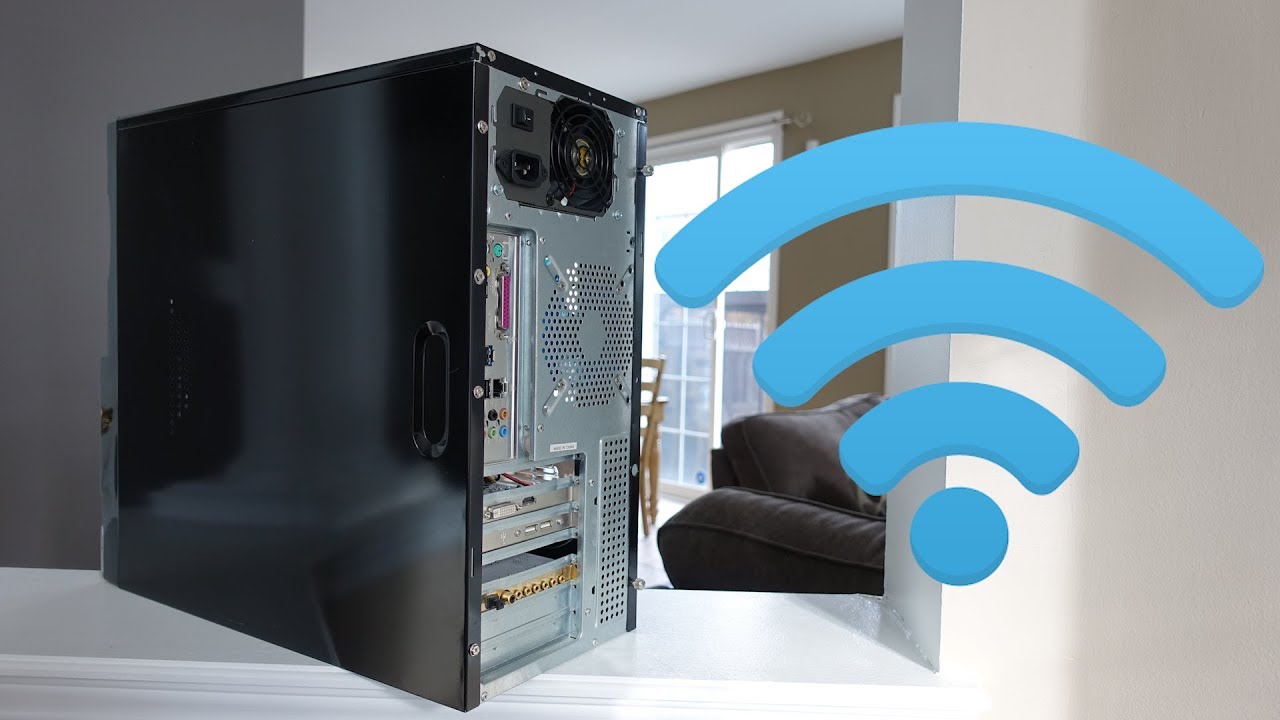
To connect your gaming PC to WiFi you primarily need a WiFi adapter. Most modern pre-built gaming PCs come with one integrated into the motherboard. However if you built your PC or have an older model you might need a dedicated adapter. These come in two main forms: internal PCIe cards or external USB adapters. PCIe cards offer superior performance and stability as they are directly connected to your motherboard and often feature larger antennas for better signal reception. USB adapters are more convenient and portable but might offer slightly lower performance depending on the model. Ensure your chosen adapter supports modern WiFi standards like WiFi 6 or WiFi 6E for the best speeds and lowest latency.
How Do I Find and Install My WiFi Drivers
After physically installing your WiFi adapter the next crucial step is installing the correct drivers. Without drivers your operating system cannot communicate with the hardware. If you have an integrated WiFi card check your motherboard's manufacturer website for the latest drivers. For a dedicated PCIe or USB adapter visit the adapter manufacturer's website. Search for your specific model number. Always download drivers directly from the official source to avoid malware and ensure compatibility. Once downloaded run the installer executable. Follow the on-screen prompts which typically involve agreeing to terms selecting an installation location and restarting your PC when prompted. Keeping your drivers up-to-date is vital for performance and security.
How Do I Connect My Gaming PC to My Home WiFi Network
Connecting to your home WiFi network is generally straightforward once drivers are installed. First ensure your PC is fully booted and your WiFi adapter is enabled. In Windows navigate to the taskbar and click on the WiFi icon. This will open a list of available networks. Find your home network's name also known as the SSID and click on it. Check the box for Connect automatically if you want your PC to remember and reconnect to this network in the future. Click Connect. You will then be prompted to enter your WiFi password also known as the network security key. Type it carefully ensuring correct capitalization then click Next. Your PC should then attempt to connect and once successful the WiFi icon will change to indicate an active connection. You are now online and ready to game!
Why Is My Gaming PC Not Connecting to WiFi After Setup
There are several common reasons why your gaming PC might not connect to WiFi after initial setup. First double-check your WiFi password. A simple typo is often the culprit. Second ensure your WiFi adapter drivers are correctly installed and up-to-date. You can check this in Device Manager. Third verify that your router is broadcasting a signal and other devices can connect. A quick router restart can often resolve temporary glitches. Fourth check if the WiFi adapter is enabled in your PC's network settings. Sometimes it can be accidentally disabled. Finally interference from other electronics or physical obstructions might be weakening the signal. Try moving your PC or router slightly to improve signal strength. For stubborn issues consider temporarily connecting via Ethernet to download diagnostics or updated drivers.
How Can I Optimize My WiFi Connection for Gaming Performance
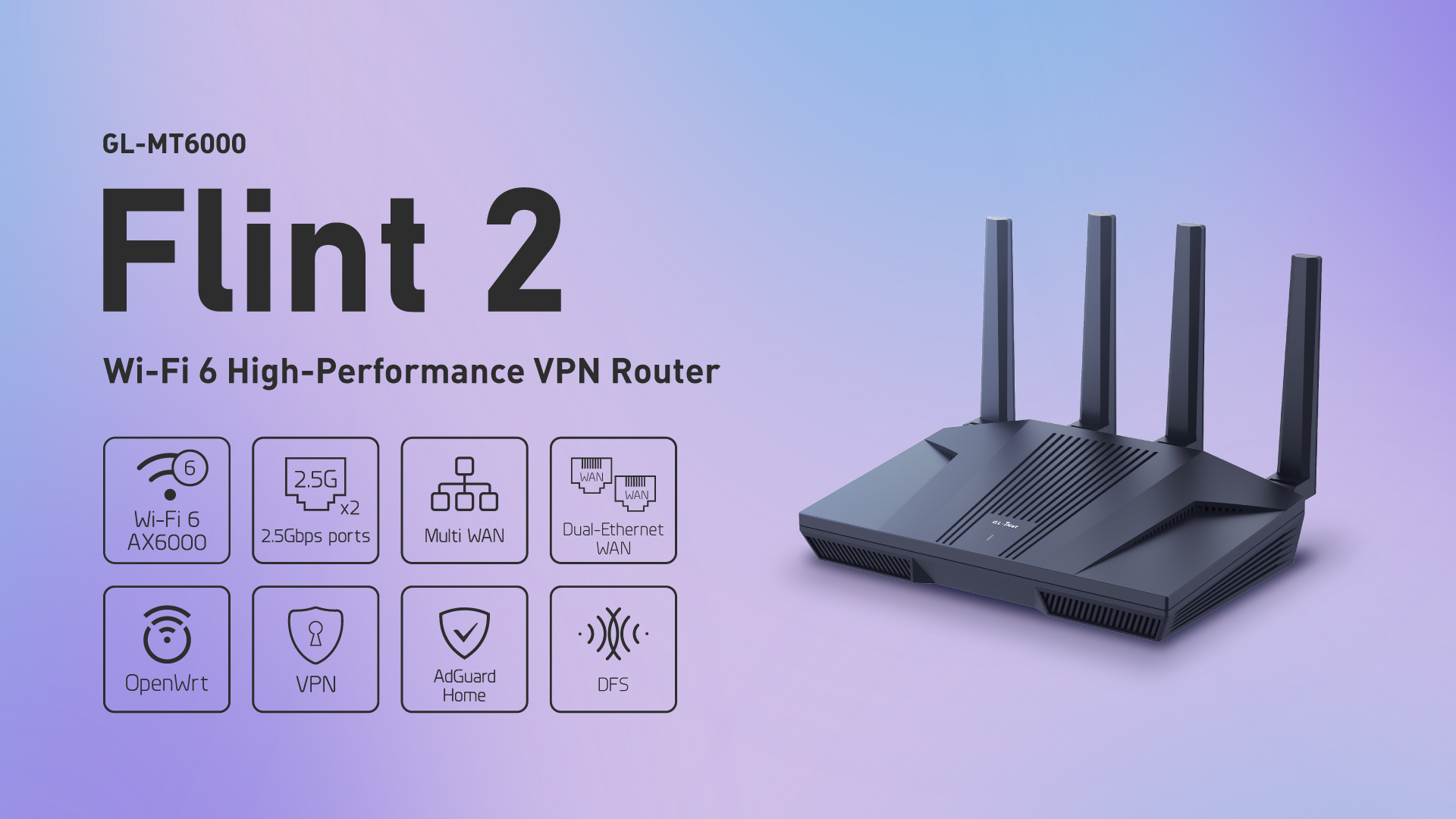
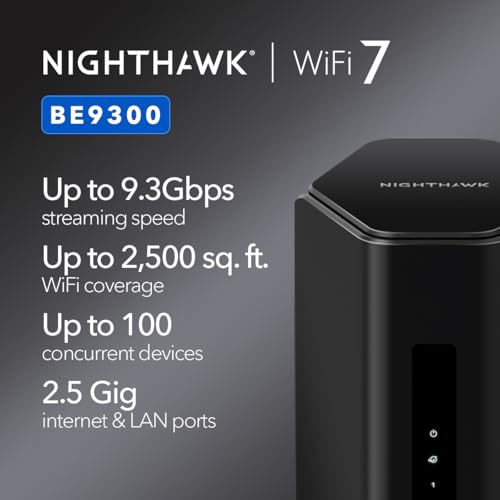
Optimizing your WiFi for gaming is key to minimizing lag and ensuring smooth gameplay. Begin by ensuring your router is centrally located and not obstructed by walls or large furniture. Upgrading to a modern WiFi 6 or WiFi 6E router can significantly improve speeds and reduce latency especially in congested networks. Consider using the 5GHz band over the 2.4GHz band as 5GHz offers faster speeds and less interference although its range is shorter. You can also prioritize gaming traffic on your router through Quality of Service QoS settings. Keep your WiFi adapter drivers updated. Finally if wireless performance is still an issue a powerline adapter or a mesh WiFi system can provide a more stable and consistent connection especially for gamers who demand competitive edge.
What Are the Best WiFi Adapters for Gaming PCs
Choosing the best WiFi adapter for a gaming PC depends on your budget and specific needs. For top-tier performance a PCIe WiFi card with support for WiFi 6E or WiFi 7 is highly recommended. These cards often come with external antennas that can be positioned for optimal signal and offer the highest throughput and lowest latency making them ideal for competitive online gaming. Brands like Intel TP-Link and ASUS offer excellent PCIe options. If you prefer a more portable or simpler solution a high-end USB 3.0 WiFi adapter can be sufficient especially if it supports WiFi 6. While USB adapters are convenient they generally cannot match the raw stability and speed of a good PCIe card. Always check reviews specifically for gaming performance and ensure compatibility with your motherboard.
How Do I Troubleshoot Slow WiFi Speeds on My Gaming PC
Slow WiFi speeds on a gaming PC can be incredibly frustrating. Start by performing a speed test to confirm the issue is with your WiFi and not your overall internet service. Try connecting other devices to WiFi to see if they experience similar slowdowns. Next reboot your router and modem. Sometimes a simple restart clears up network congestion. Ensure your WiFi adapter drivers are the latest version. Check for background applications on your PC that might be consuming bandwidth. Move your PC closer to the router or remove any obstructions that might be interfering with the signal. If you have an older router consider upgrading it to a newer standard like WiFi 6 or 6E. Lastly investigate potential WiFi channel interference from neighboring networks using a WiFi analyzer app and adjust your router's channel settings if necessary. For persistent issues a wired Ethernet connection remains the gold standard for gaming stability.
Is a Wired Connection Always Better Than WiFi for Gaming
For most serious and competitive gamers a wired Ethernet connection is almost always superior to WiFi. This is due to several key factors: latency consistency and interference. Ethernet connections typically offer lower ping times meaning faster response from game servers. They provide a more stable connection less prone to fluctuations or drops. Furthermore wired connections are immune to wireless interference from other devices microwaves or even neighboring WiFi networks that can degrade WiFi performance. While modern WiFi standards like WiFi 6 and WiFi 6E have significantly narrowed the performance gap for gaming an Ethernet cable still offers the most reliable and consistent gaming experience especially when every millisecond counts. However for casual gamers or those where wiring is impractical a well-optimized WiFi setup can still deliver a very enjoyable experience.
Conclusion
Connecting your gaming PC to WiFi should not be a daunting task. By understanding your hardware keeping drivers updated and optimizing your network settings you can achieve a stable and fast connection perfect for all your gaming needs. We hope this guide has empowered you to tackle any WiFi challenges ensuring your precious gaming time is spent on epic adventures not frustrating troubleshooting. Remember a smooth connection frees you up to enjoy those moments of relaxation skill-building and social fun that gaming offers. What is your biggest gaming challenge when it comes to getting online and staying connected? Comment below!
FAQ Section
Q: Do I need a special WiFi adapter for gaming?
A: While any WiFi adapter will connect you to the internet dedicated gaming WiFi adapters or modern PCIe cards with WiFi 6 or 6E offer lower latency and higher stability crucial for competitive online play. They often feature advanced chipsets and external antennas for improved signal reception.
Q: How far can my gaming PC be from my router for good WiFi?
A: Ideally your gaming PC should be within 15-30 feet of your router for optimal WiFi performance especially on the 5GHz band. Obstructions like walls or appliances can significantly reduce this range. The closer the better for speed and reliability.
Q: Can my router settings affect my gaming WiFi performance?
A: Absolutely. Router settings like Quality of Service QoS which prioritizes gaming traffic and selecting optimal WiFi channels can significantly impact your gaming experience. Ensuring your router firmware is updated also improves performance and security.
Q: What is the 5GHz band and should I use it for gaming?
A: The 5GHz WiFi band offers faster speeds and less interference compared to the 2.4GHz band making it generally better for gaming. However its range is shorter. If your PC is close to the router always try to connect to the 5GHz network.
Q: How often should I update my WiFi adapter drivers?
A: It is a good practice to check for WiFi adapter driver updates every few months or whenever you encounter performance issues. Manufacturers often release updates to improve stability speed and compatibility. Always download from the official manufacturer's website.
Q: Will a WiFi extender help my gaming PC's connection?
A: A WiFi extender can boost signal coverage in dead zones but it often introduces additional latency which is undesirable for gaming. For better gaming performance consider a mesh WiFi system or powerline adapters which offer more stable and consistent connections.
Check WiFi adapter compatibility and drivers ensure optimal router placement troubleshoot common connection issues update network settings for gaming performance consider powerline adapters or mesh WiFi for stability.
35


8 Best Gaming PC WiFi Adapters Of 2026 Top 8 Gaming Wifi Adapters . Best WiFi For Gaming 2026 Router Mesh Gaming PC Guru AC SL1500 . This Is How To Get WiFi On Your Desktop Gaming PC YouTube . How To Add WiFi To Your PC Easy Step By Step Guide YouTube . How To Connect A Wireless Controller To A PC 2026 Guide


10 Best WiFi Enabled Power Monitors For Gaming PC Energy Tracking Best WiFi Enabled Power Monitors For Gaming PC Energy Tracking 1024x559 . 7 Best Gaming WiFi Adapters Of 2026 Top Gaming Wifi Adapters . Best WiFi For Gaming 2026 Router Mesh Gaming PC Guru Best Budget Gaming Router Featured 400x250 . Best Wireless Router For Gaming 2026 WiFi Gaming PC Guru 89768fb0 1ad7 40e9 97d9 PT0 SX1464 V1 . The EASIEST Way To Connect To WiFi On Your Desktop Computer YouTube


What Internet Speed Do I Need For Gaming Tips To Lower Ping . Best Wifi Adapters For PC Gaming In 2023 Ultimate Guide What Is Wifi Adapter For PC Gaming 1024x576 . How To Connect Wifi With Desktop Computer YouTube . How To Connect The Wifi To The Computer TAFT Independent Aid6638500 V4 728px Connect To WiFi In Windows 10 Step 14 Version 2 . How To Add WiFi To PC Full Guide YouTube



Best Wireless Router For Gaming 2026 WiFi Gaming PC Guru 61QoX9I PUL. AC SL1500 . How To Connect Desktop PC To Wifi How To Set Up And Add Wifi On . 3 Ways To Get WiFi On A Desktop PC YouTube . Best Wireless Router For Gaming 2026 WiFi Gaming PC Guru 81axt7v LuL . Best Gaming PC Builds For 2026 Best Gaming PC Builds For 2026.webp


How To Build A Pc With Wifi How To Build Info . How To Connect Your XBOX Controller To PC Wireless Pairing YouTube . Best Gaming Routers Top Picks In 2026 T Gaming PC Guru Best Wifi Extenders For Gaming Featured 400x250 . Best Wireless Router For Gaming 2026 WiFi Gaming PC Guru AC SL1500 . Best WiFi For Gaming 2026 Router Mesh Gaming PC Guru 619O AtYZhL. AC SL1200



Top 10 Best Wifi Adapter For Pc Gaming For 2026 Expert Tested Techzaru Product B0B5YPK9L1 2 . Best Wireless Router For Gaming 2026 WiFi Gaming PC Guru AC SL1500 . 2 Best Wifi Adapter For Pc For 2026 Expert Tested Techzaru Product B0B1NRGDQ4 . How To Connect TeamViewer PC To PC 2026 Setup How To Connect Tmvr Pc To Pc . Best Wireless Router For Gaming 2026 WiFi Gaming PC Guru AC SL1000


How To Connect WiFi Adapter On PC Install Wi Fi Receiver With PC 2022 . How To Connect Your PC To WIFI Without Ethernet Cable Without Adapter . Best Wireless Router For Gaming 2026 WiFi Gaming PC Guru 715eW V DnL. AC SL1500 . Best WiFi For Gaming 2026 Router Mesh Gaming PC Guru 41TJSZMdpwL . How To Connect Usb Wifi Adapter For Pc At Ladonna Teal Blog